For teams already working across Microsoft 365, Copilot is a strong way to create and revise presentations inside PowerPoint. Slidely AI is our pick when the work revolves around source-led briefs, company design sources and repeated edits to an existing business deck. This comparison covers 20 practical questions; the judgments below are editorial, not a controlled test of output quality or speed. Microsoft product guidance and the supplied examples were reviewed on 28 September 2026.
Copilot vs Slidely AI at a glance
 Microsoft Copilot Microsoft Copilot |  Slidely AI Slidely AI | |
|---|---|---|
| Best for | Microsoft 365-native PowerPoint work | Our pick for ongoing business PowerPoint work |
| Where you work | PowerPoint and supported Microsoft 365 apps | Web plus PowerPoint add-in on Windows and Mac |
| Starting from source material | Prompts and supported Microsoft 365 files | Bring reference files and your PPT design source together |
| Storyline and research | Outlines and Microsoft 365 work context | Clarify the brief and review content and sources before design |
| Company templates | Works with existing branded PowerPoint templates | Build around your company PowerPoint layouts and styling |
| AI editing | Revise content and add slides within PowerPoint | Revise existing PowerPoint content through conversation |
| PowerPoint output | PowerPoint-native deck; inspect complex objects | Continue working with native editable PowerPoint content |
| Enterprise | Microsoft 365 admin, identity and compliance controls | Evaluate VPC deployment and organizational LLM options |
| Google Slides | Designed for Microsoft 365, not a native Slides add-in | Built for PowerPoint; no native Google Slides add-in advertised |
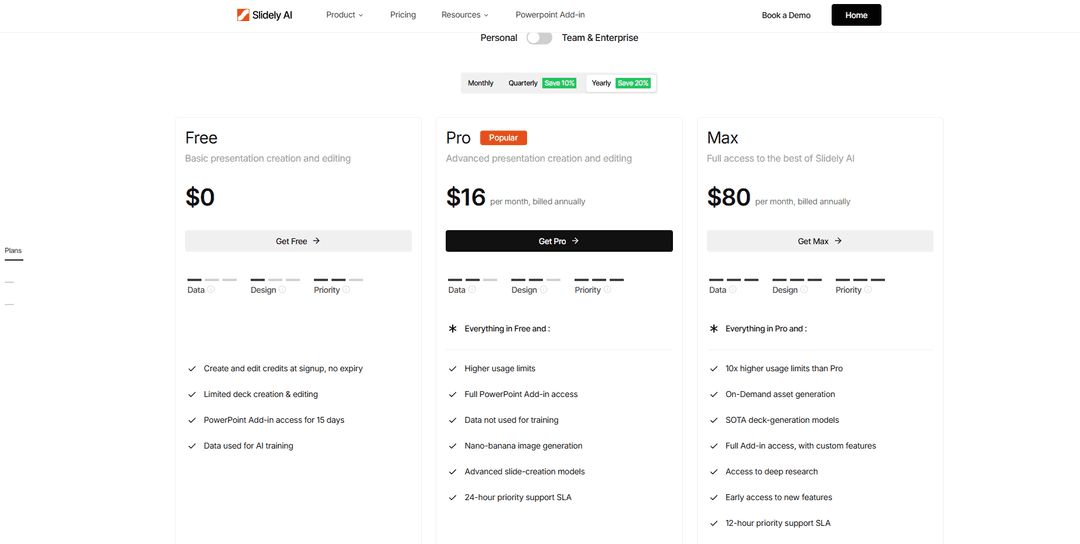
| Free plan | Free Copilot chat is not full PowerPoint authoring | Start with a limited ongoing free plan; add-in trial applies |
How we compared Copilot and Slidely AI
We compared the workflows illustrated in the supplied document with Microsoft’s PowerPoint Copilot training, Copilot support center and Copilot extensibility documentation. Screenshots show examples, not independently measured performance. Availability depends on license, tenant policy and feature rollout. We evaluate which tool fits repeatable business PowerPoint work, and we acknowledge Microsoft 365 strengths where they matter.
Presentation creation
1. How easy is it to give the AI your source material?
2. Can the tool research and enrich the presentation?
3. How well does it plan the storyline and slide content?
4. Can you control the design direction before generation?
5. Can it create high-quality, data-dense slides?
6. How fast and flexible is the creation workflow?
Branding, templates & design
7. Can it use your real company template?
8. Can it learn and reuse your company's design patterns and preferences?
9. Can it help when you do not already have a usable template?
Editing, data & PowerPoint productivity
10. How well can it edit existing slides with AI?
11. How well can it redesign one or multiple slides?
12. Can it re-template slides into a new design system?
13. Can it review and fix consistency across the whole deck?
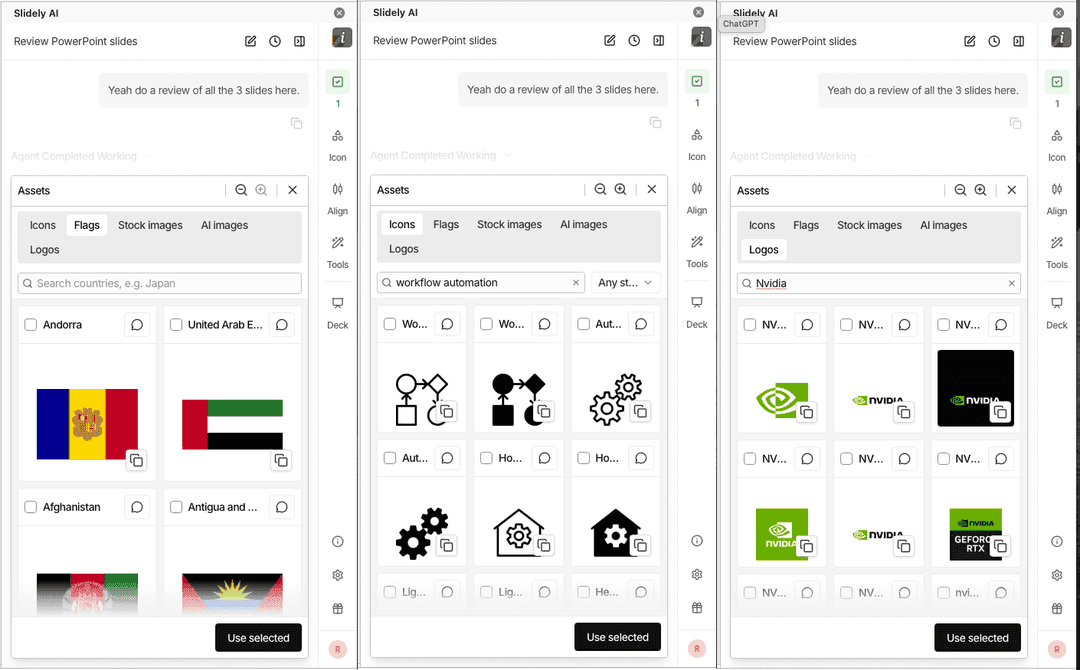
14. Can it find and improve visual assets?
15. Does it keep everything natively editable in PowerPoint?
16. Does it provide advanced PowerPoint productivity tools?
Platform, user experience & enterprise
17. Where can you use the product?
18. How accessible are pricing and human support?
19. How well does it support enterprise deployment, model control, and security?
20. Can it work with ChatGPT, Claude, and other AI assistants?
Presentation creation
The first part of our comparison looks at everything that happens before a finished deck exists: giving the AI context, researching the topic, developing the storyline, aligning on the design direction, and finally turning all of that into slides.
1. How easy is it to give the AI your source material?
A useful input workflow should distinguish the evidence for a presentation from its visual template. A report supplies facts; a company deck supplies design rules. The key question is how clearly the tool lets you provide both.
Microsoft Copilot
Microsoft 365 Copilot in PowerPoint can create a presentation from a prompt or a referenced Word document or other supported work files, depending on your license and access to those files. A file used for content is not the same as a design source: check separately whether the presentation uses the organization’s approved PowerPoint template.
The supplied example shows the Copilot file-selection flow; it does not establish that every file format or every connected data source works in every tenant.
Slidely AI
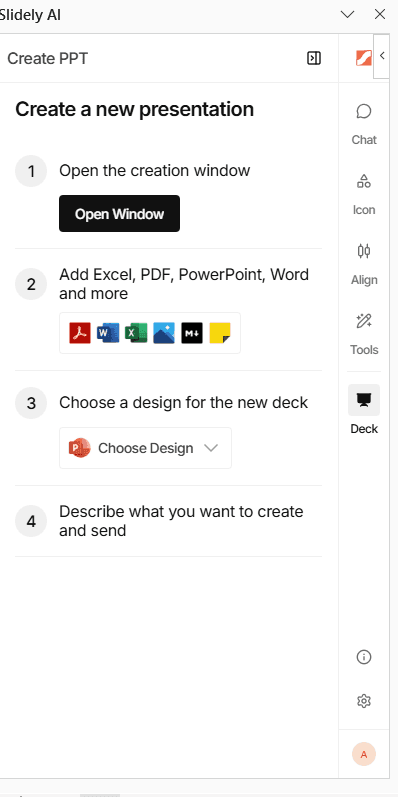
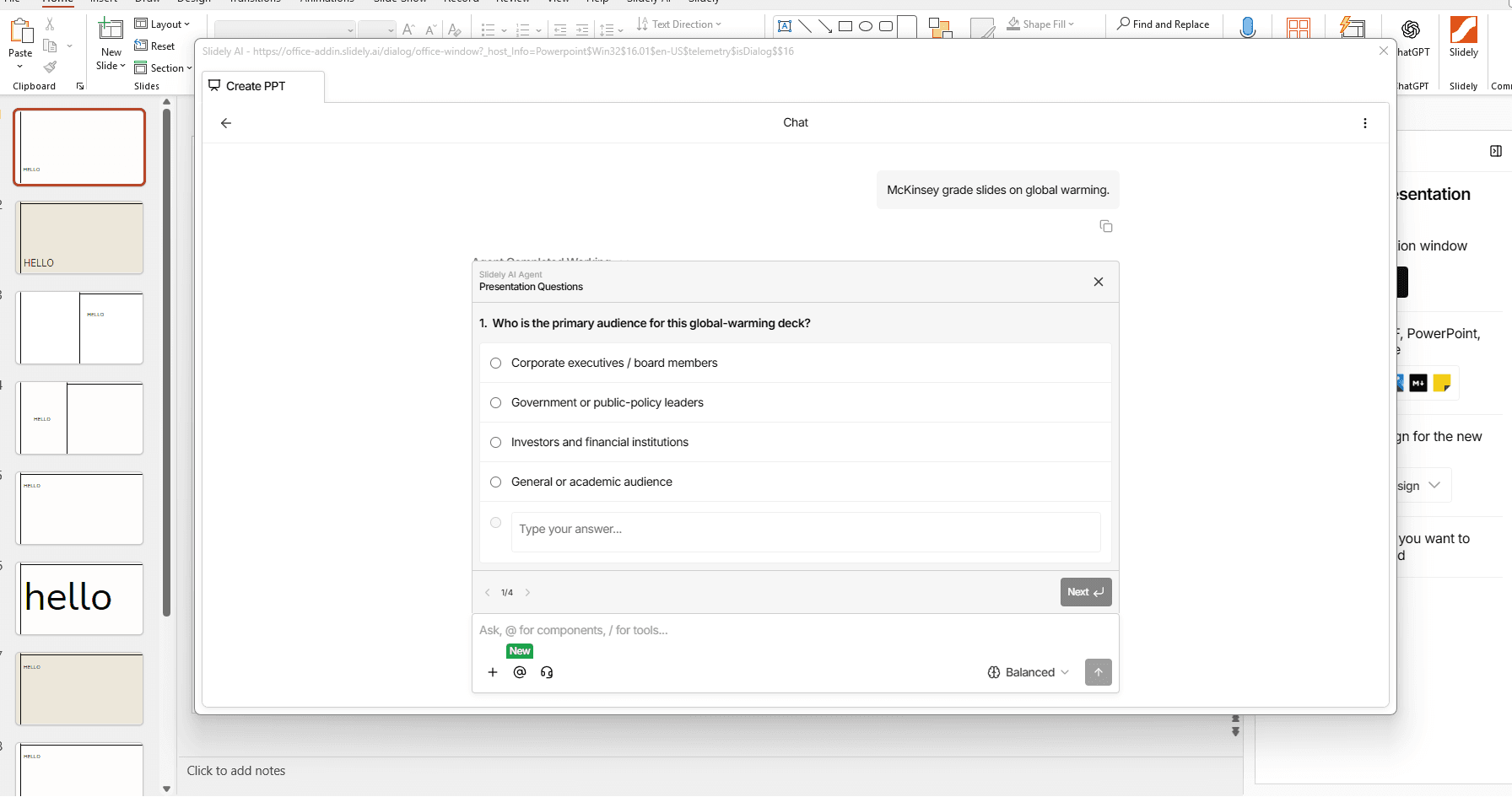
Slidely AI accepts documents, slides, and spreadsheets as references, alongside an uploaded PowerPoint design source. That lets a team provide its brief, supporting data and branded deck together, then review how those inputs are used during planning.
Our take
Both handle source files; Slidely for a separate PPT design source.
Copilot can draw on Microsoft work files; Slidely distinguishes reference files from its uploaded PowerPoint design source. Validate both using the same company brief and template.
2. Can the tool research and enrich the presentation?
The files a user provides rarely contain all the context needed for a strong presentation. External information can completely change the interpretation of the internal data. A company growing at 20%, for example, looks very different if its market is growing at 10% versus 40%.
Research is useful only when the reader can verify it. We compare where external information enters the workflow and how easily a reviewer can check the supporting sources.
Microsoft Copilot
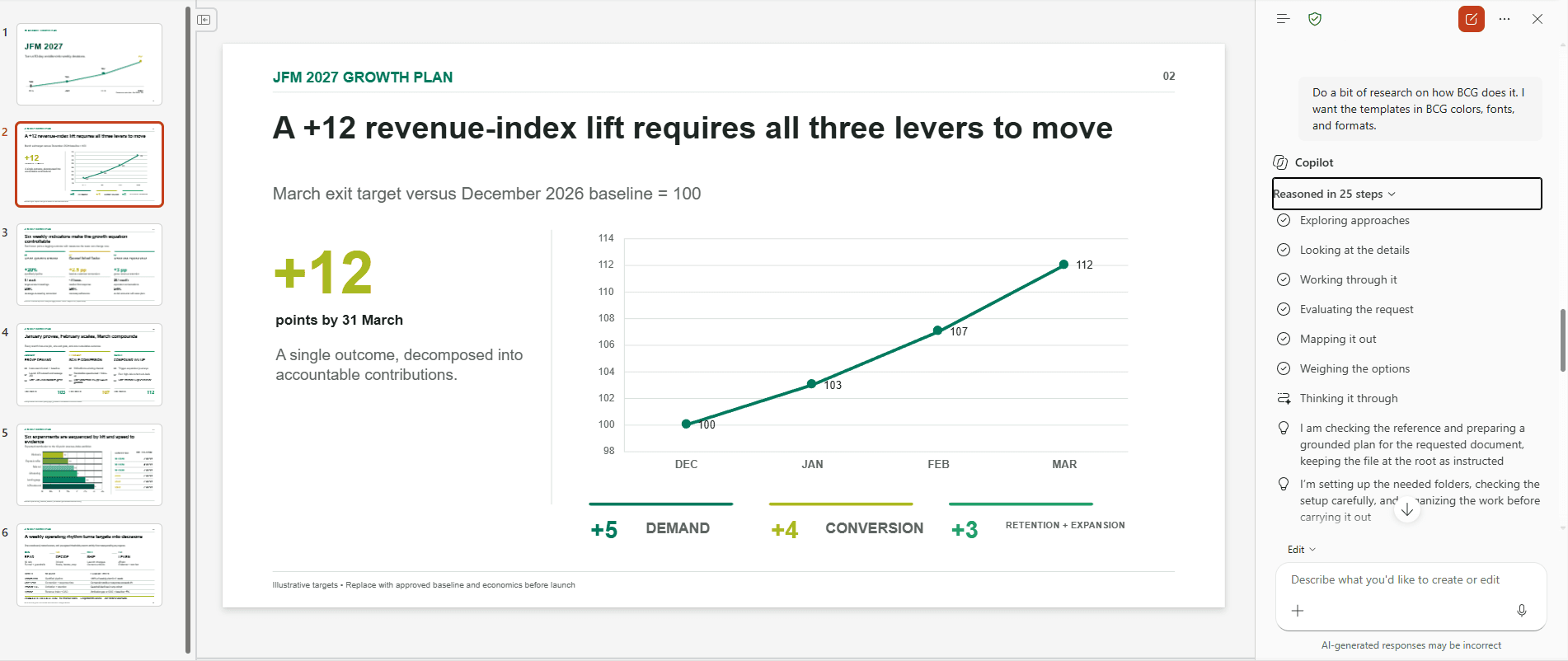
Copilot can draw on Microsoft 365 work context and, where enabled, web-grounded information. This is particularly useful when the evidence already lives in an organization’s Microsoft files. Check the citations and permissions for each claim: a plausible slide is not proof that its numbers or external research have been verified.
The screenshot illustrates Copilot working with supplied context; it is not a controlled test of source accuracy.
Slidely AI
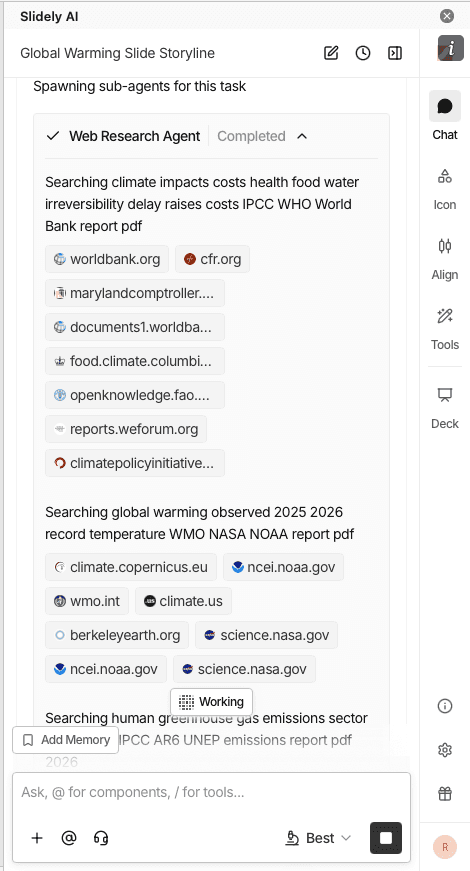
Slidely AI includes web search in its creation workflow and provides source links for review. Users can examine slide content and citations before proceeding with generation.
Slidely lets you review the evidence alongside the planned slide content before committing to the design. Check the source date, geography and definition of each metric at that stage, when correcting the argument is easiest.
Our take
Copilot for Microsoft 365 context; Slidely for pre-design source review.
Both can enrich a story. Copilot is compelling when the evidence already lives in Microsoft 365; Slidely gives a place to review linked sources with proposed slide content. Verify facts in either workflow.
3. How well does it plan the storyline and slide content?
A good presentation is not simply a document broken into slides. Before designing anything, the creator needs to decide who the presentation is for, what the audience should take away, how the argument should unfold, and what evidence belongs on each slide.
The comparison here is about opportunities to review the argument before generation, rather than whether either product can produce an outline.
Microsoft Copilot
Copilot can turn a brief or source document into an outline and draft deck in PowerPoint. Depending on the workflow, users can review an outline or ask for changes before proceeding. This makes it more than a one-shot slide generator.
For a high-stakes business story, spell out the audience, argument and evidence in the prompt or source file and review the proposed sequence before accepting a deck.
Slidely AI
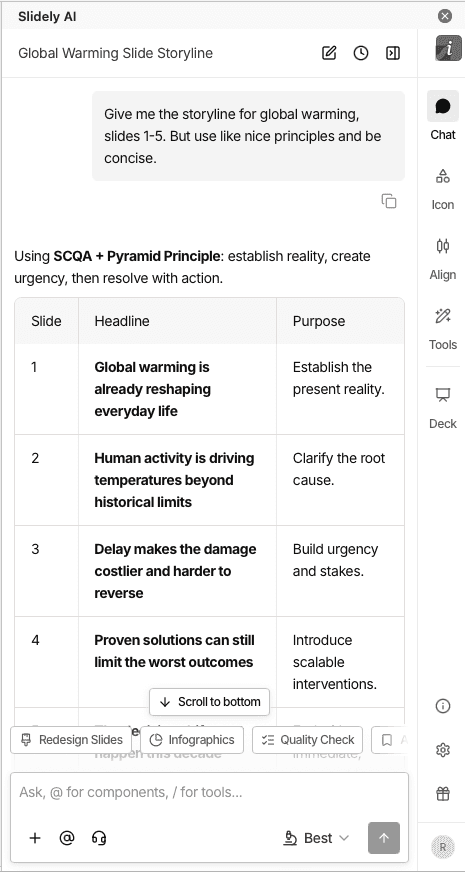
Slidely AI asks clarifying questions about the brief and supports review of the storyline and planned content for individual slides.
Use that stage to settle the audience, recommendation and supporting evidence. It is easier to correct a missing argument before investing in slide design.
Our take
Both support planning; Slidely for detailed slide-content review.
Copilot can produce an outline and draft inside PowerPoint. We favor Slidely when the team needs clarification and per-slide content approval before it commits to design.
4. Can you control the design direction before generation?
Even if the storyline and data are correct, there are many ways to visualize the same presentation. Discovering that the AI chose the wrong design direction after generating 30 or 50 slides creates unnecessary rework.
We therefore looked at how much control users have over layouts and visual direction before the full deck gets generated.
Microsoft Copilot
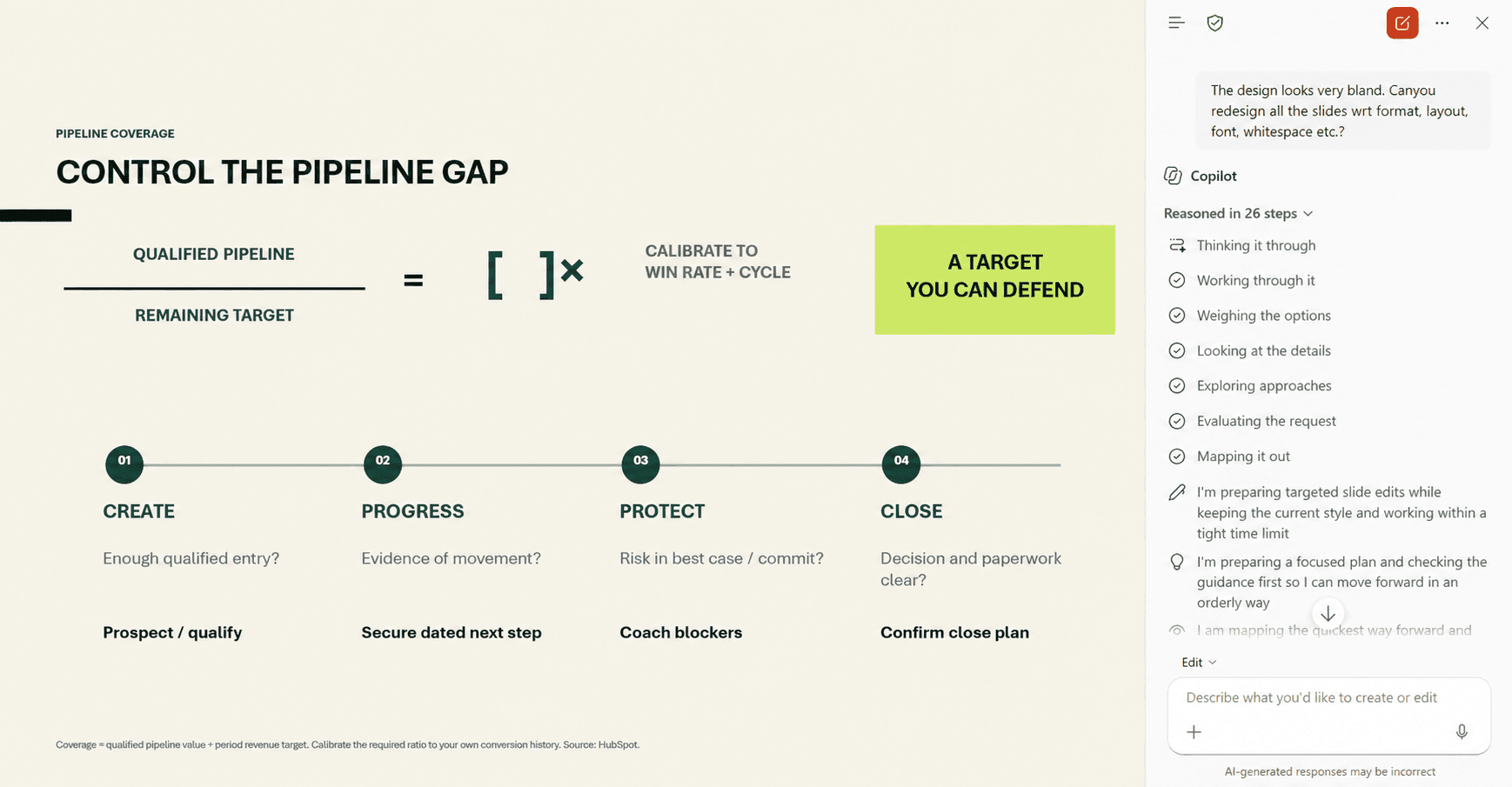
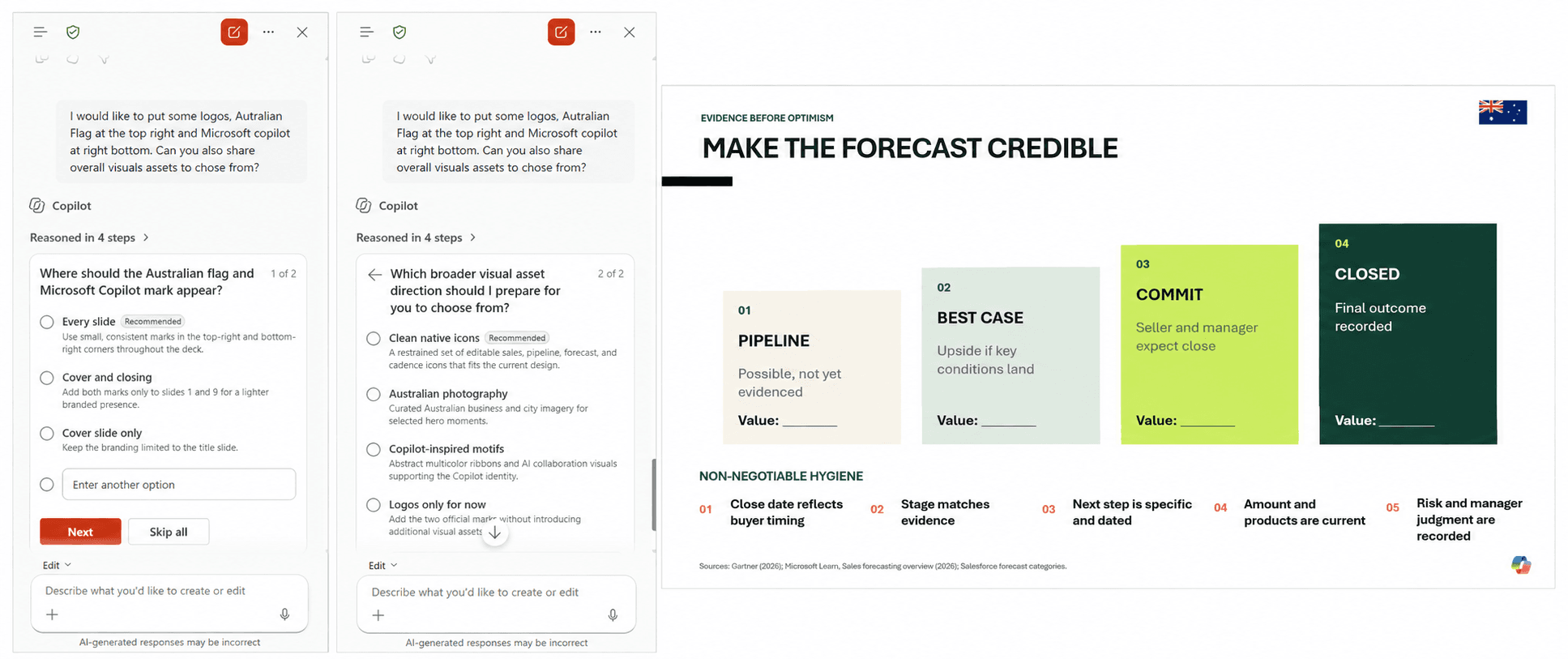
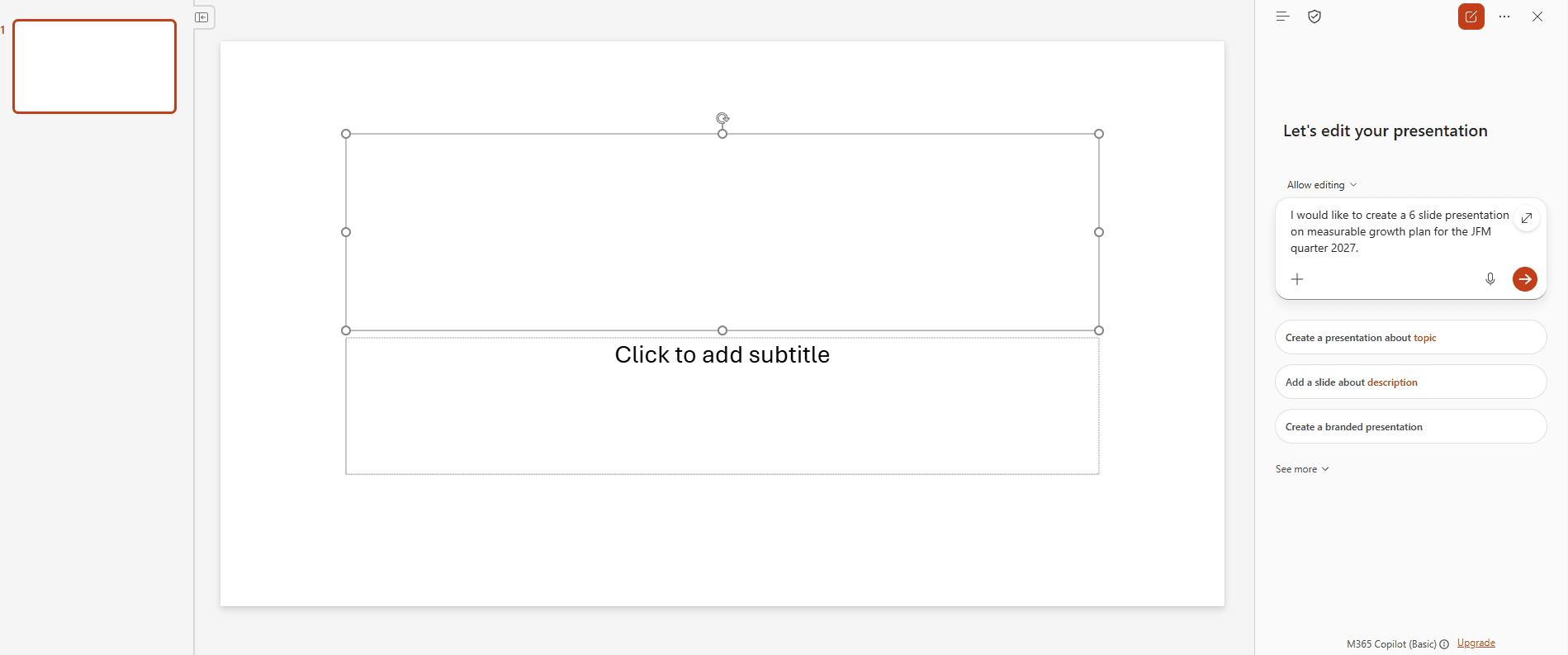
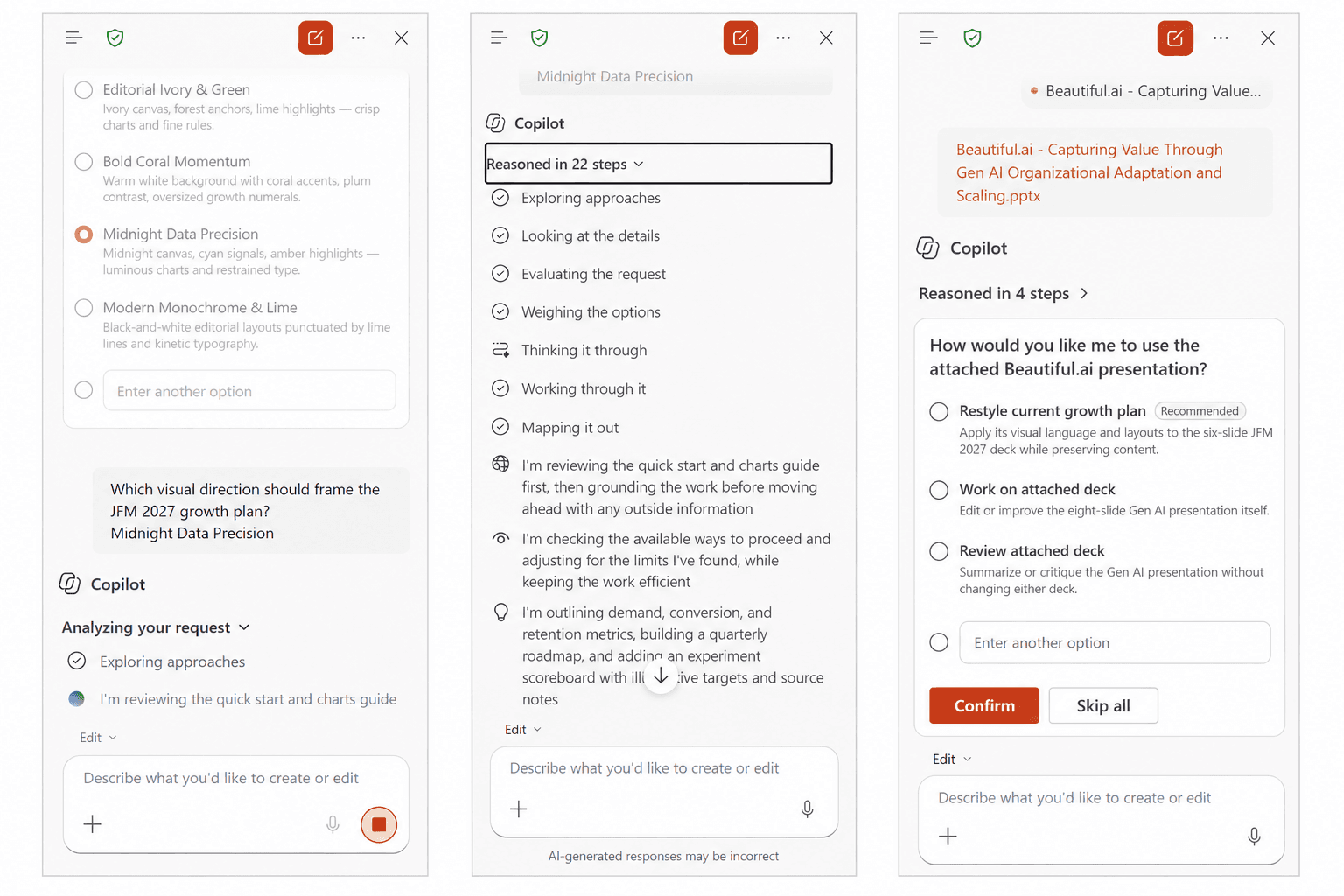
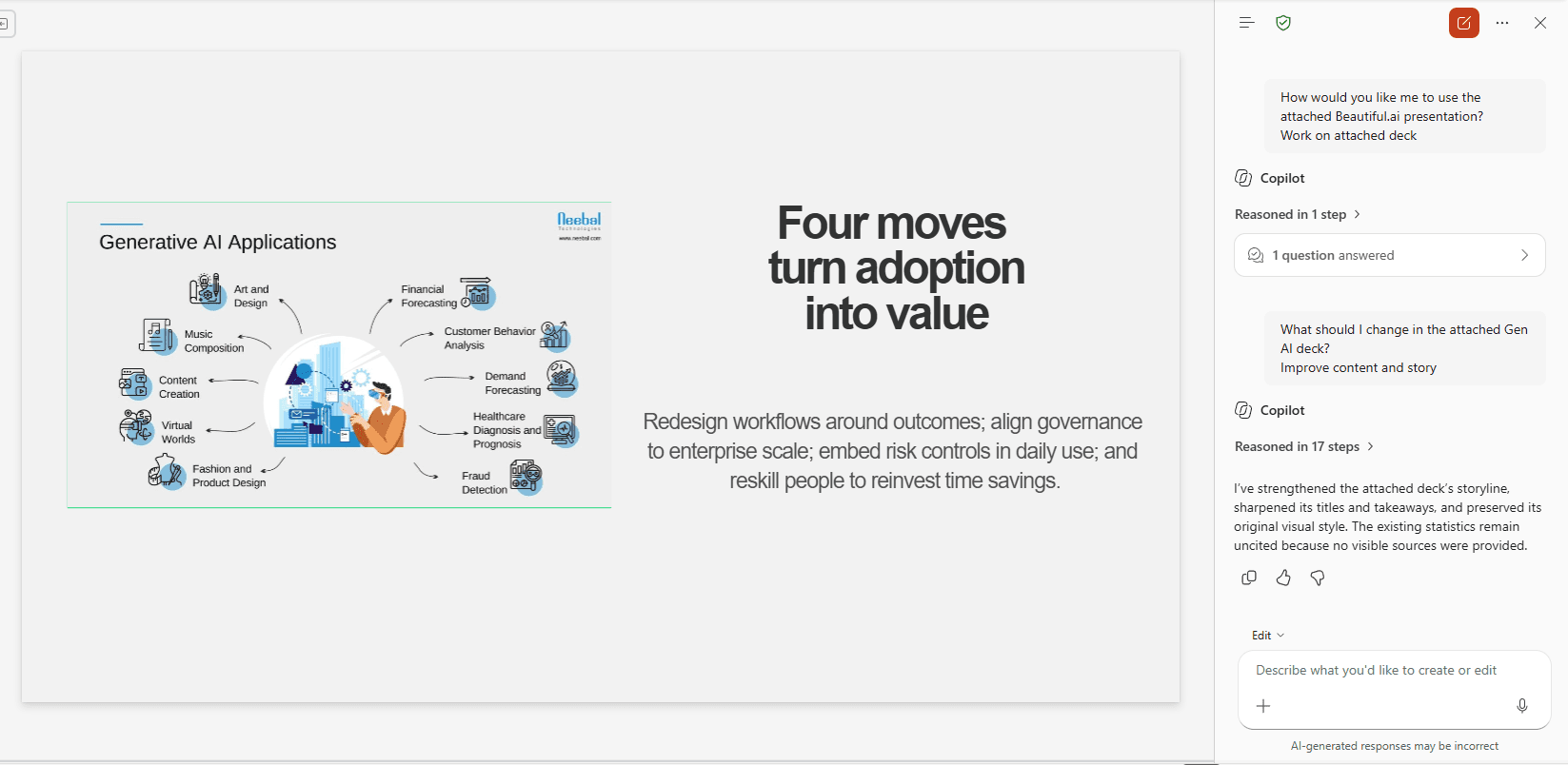
Copilot’s PowerPoint workflow can start with an existing presentation or organization template. The resulting design depends on the template, content and available features; do not assume a prompt gives pixel-level control of every slide. The examples show a way to influence direction, not a guarantee that every layout will match a brand system.
Use representative company slides to check chart, table and title layouts before scaling to a full deck.
Slidely AI
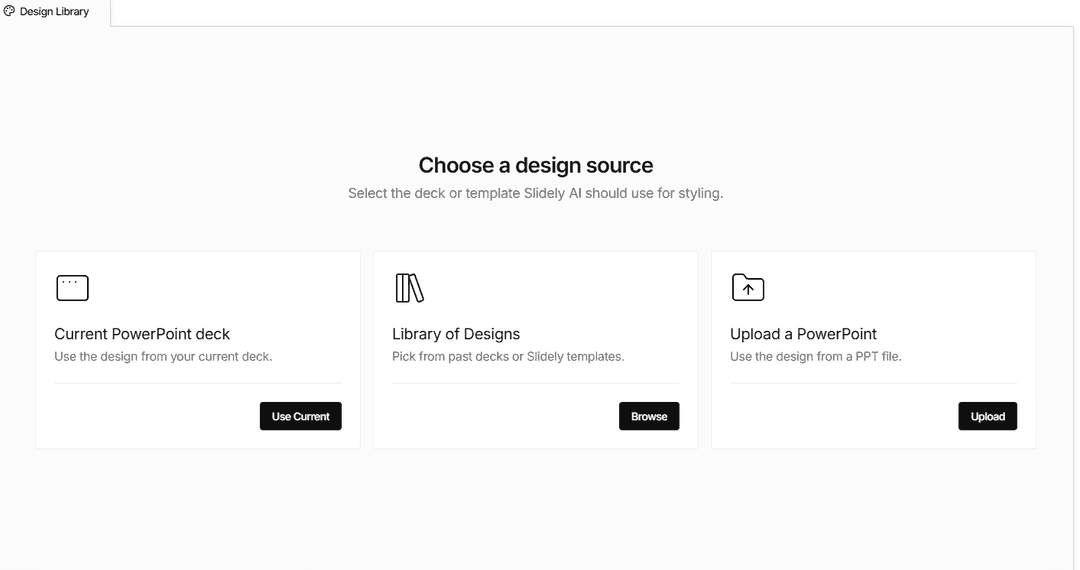
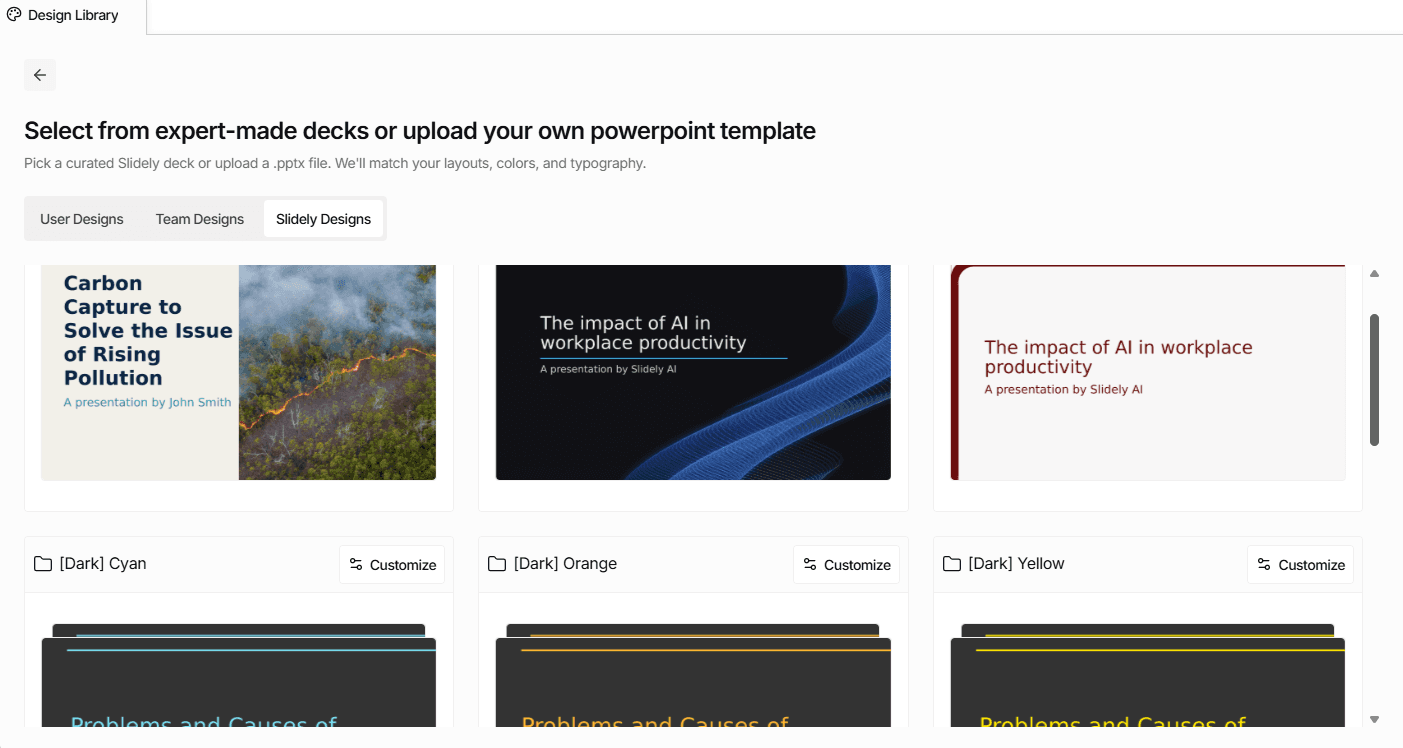
Slidely AI can use layouts from an uploaded PowerPoint template and lets users review layout choices alongside slide content.
This is useful when a team already knows which company layouts are appropriate for evidence, recommendations and detailed exhibits.
Our take
Copilot for an existing branded template; Slidely for layout selection.
Copilot can use an existing PowerPoint template; Slidely shows layout choices from a design source alongside planned content. Choose according to how much pre-generation layout control your team needs.
5. Can it create high-quality, data-dense slides?
Professional presentations vary enormously in information density. An executive summary might contain one message and a chart; a consulting or financial-analysis slide might contain several charts, a detailed table, annotations, and supporting evidence.
We wanted to see whether the design adapts to the information, or whether the information has to be simplified to fit the design.
Microsoft Copilot
Copilot works in editable PowerPoint and can help create slides from a prompt or document. PowerPoint’s native charts, tables and shapes can be used in the finished deck, but the screenshot does not establish that a particularly dense exhibit is automatically generated with every object and data link intact.
Judge both tools against a real information-heavy slide, checking numeric accuracy, legibility and object editability rather than scoring visual quality from marketing examples.
Slidely AI
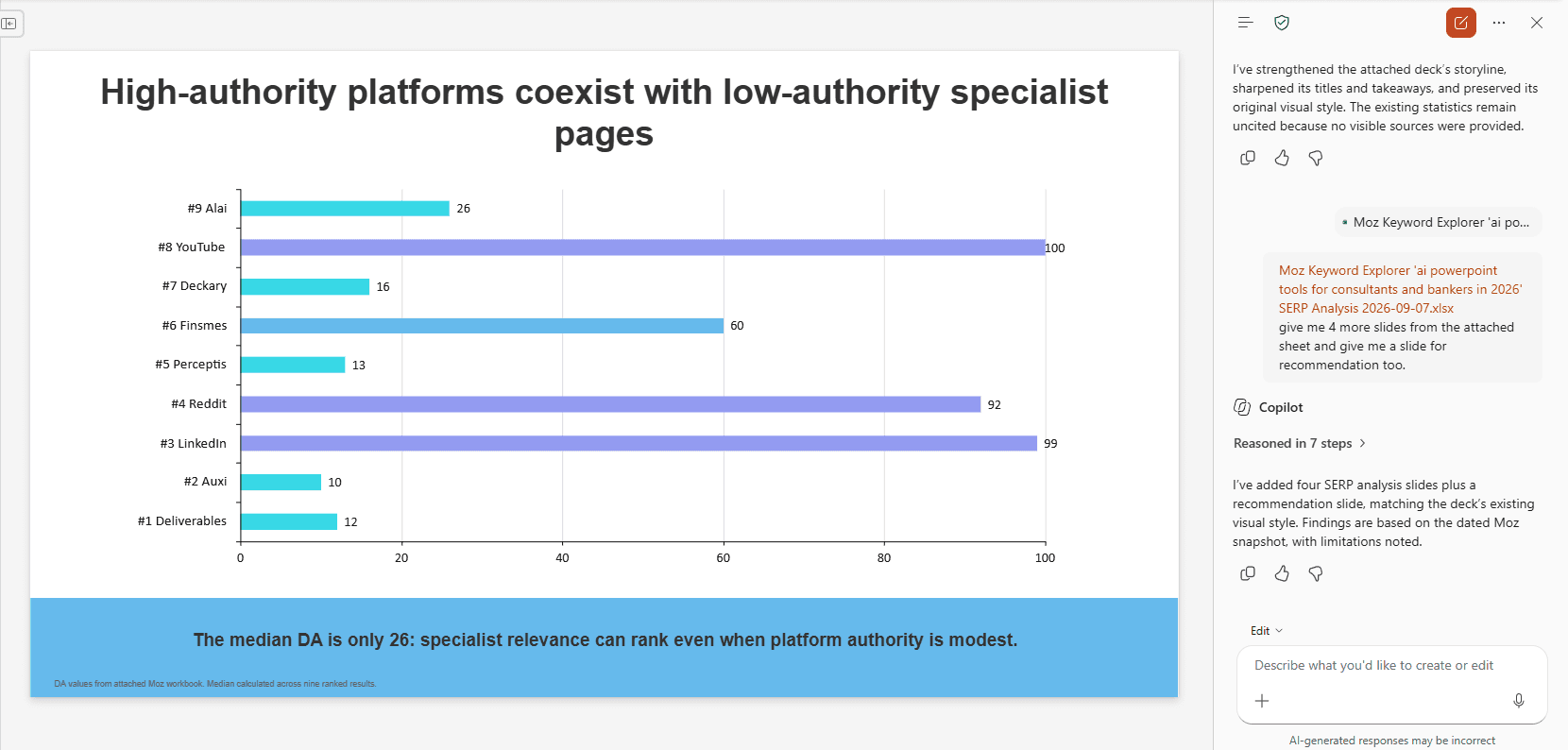
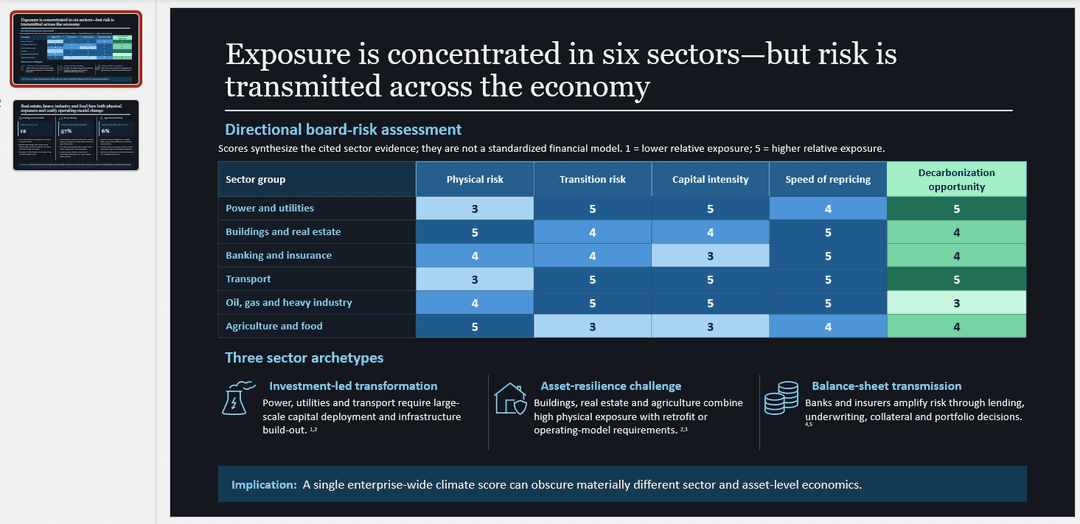
Slidely AI generates editable PowerPoint charts, tables, and shapes. The example below shows a dense exhibit with several information layers on one slide.
Editable charts, tables and shapes let your team keep refining the exhibit in PowerPoint. Review the values and source references as part of the normal approval process.
Our take
No measured quality winner; Slidely for editable dense exhibits.
Both operate with PowerPoint content. Slidely’s example shows a dense editable exhibit, while the material here does not establish comparable generated-object fidelity for every Copilot output. Test a real data-heavy slide.
6. How fast and flexible is the creation workflow?
Generating a long presentation still takes time with any AI system. What matters is not only the absolute generation time, but whether the product keeps the user blocked while work is happening.
A useful comparison measures time to an approved deck, including review and repairs. Generation time alone is not enough.
Microsoft Copilot
Copilot is integrated into PowerPoint and Microsoft 365, so teams already working in those apps can generate and revise without moving to a separate presentation editor. It also supports iterative prompts.
Neither the screenshots nor this comparison measure time to an approved deck. Compare the full creation, review and correction cycle with the same brief rather than claiming one tool is faster.
Slidely AI
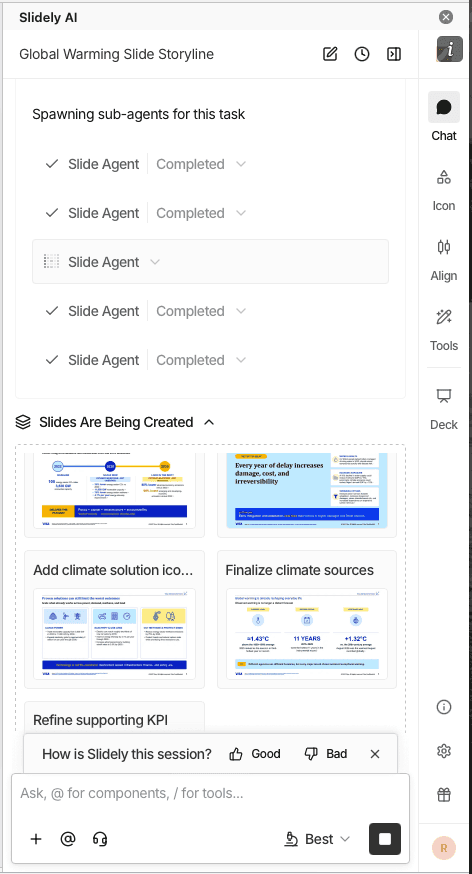
Slidely AI offers parallel chats, allowing separate presentation tasks to continue in different conversations.
Slide-completion and presentation-completion notifications help you follow progress without continuously watching a generation task. Parallel chats keep separate pieces of presentation work organized.
Our take
Copilot for in-app flow; Slidely for parallel tasks.
Copilot fits teams already in Microsoft 365. Slidely’s parallel chats and completion notifications help with several ongoing tasks. No generation-time benchmark was run.
Branding, templates & design
Once the content is right, the next question is whether the output actually looks like it belongs to the company creating it.
For professional teams, branding is not just a logo, two colors, and a font. It is encoded in PowerPoint masters, layouts, reusable slide patterns, components, and hundreds of smaller design choices accumulated over time.
7. Can it use your real company template?
Many teams already have a professionally designed PowerPoint template. They do not need the AI to create a new design system; they need it to work correctly inside the one they already use.
We therefore looked at how easily each product can adopt an existing company or client template.
Microsoft Copilot
Copilot can create within an organization’s existing PowerPoint template and make use of branded layouts. Microsoft’s current guidance recommends beginning with a well-structured template and representative layouts to improve the branded result.
This is a real strength for Microsoft 365 organizations, not a missing feature. Verify whether the approved template is available and how generated title, chart and table slides render in it.
Slidely AI
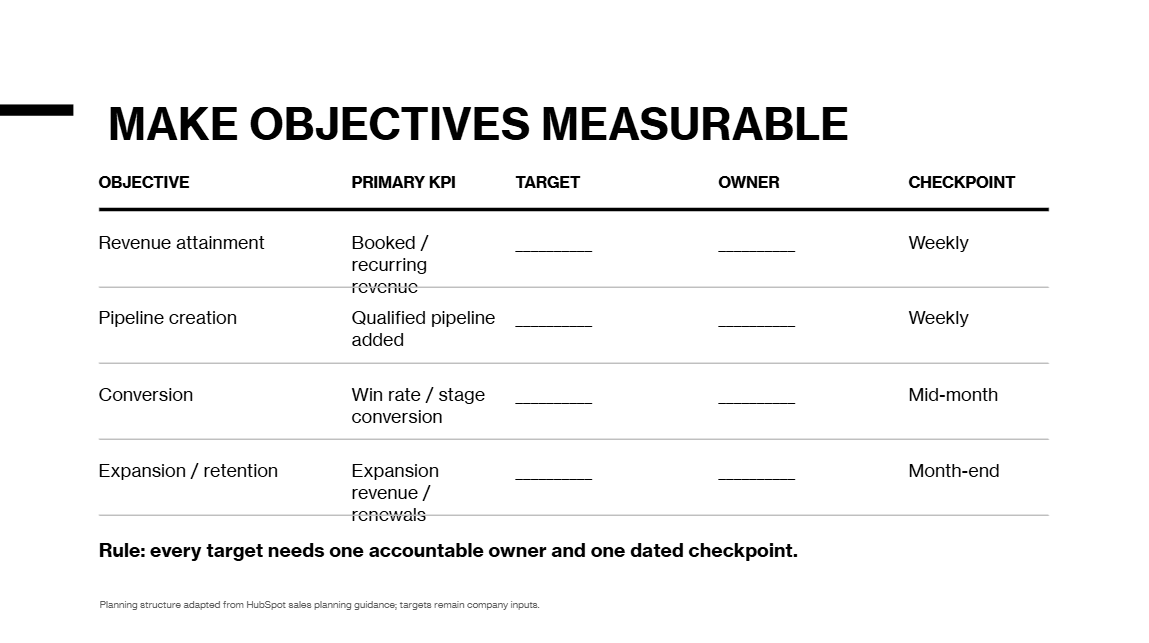
Slidely AI uses an uploaded .pptx as a design source, including its layouts and visual styling.
Start from representative company slides so Slidely has the layouts and styling your team wants to reuse. Review title slides, charts and tables against that source before the final handoff.
Our take
Both support company PowerPoint templates.
Copilot can work within branded PowerPoint templates; Slidely accepts a deck as its design source. Use real company slides to test master fidelity and ease of revision.
8. Can it learn and reuse your company's design patterns and preferences?
A formal template only captures part of how a company actually designs slides. Teams also reuse KPI cards, table styles, timelines, process diagrams, chart treatments, section patterns, and dozens of other components that may never appear as formal PowerPoint layouts.
At the same time, individual users develop their own preferences about which patterns they like to use.
Microsoft Copilot
Copilot can use the theme and layouts in a branded PowerPoint file, and Microsoft 365 organizations can provide standardized presentation starting points. That does not by itself establish persistent learning of each employee’s favorite slide components or client-specific design exceptions.
Separate template conformity from the reuse of informal exhibit patterns in your own evaluation.
Slidely AI
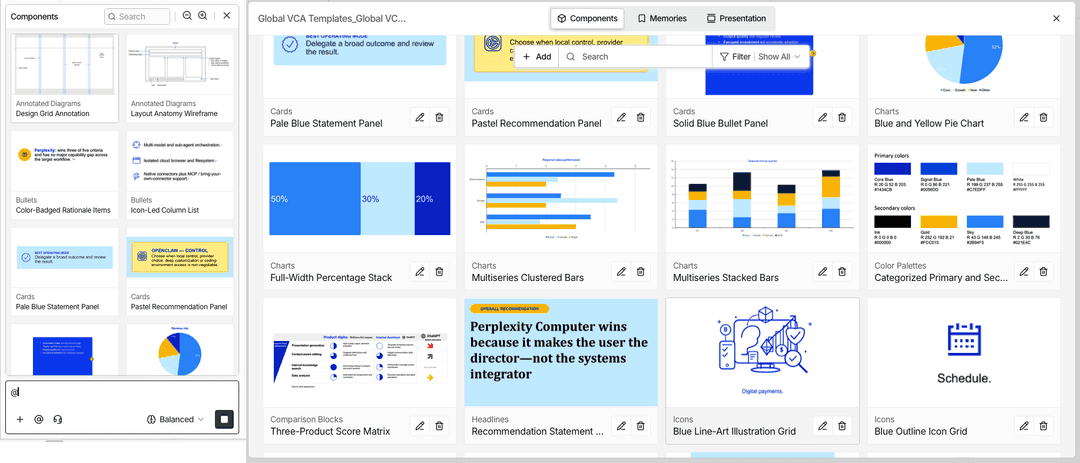
Slidely’s design components and scoped design memories are intended to reuse visual patterns and preferences from existing work.
For example, a recurring exhibit style may matter even when it is not a formal master layout. Review saved preferences so an exception for one client does not become a rule for another.
Our take
Slidely for reusable design components and scoped preferences.
Copilot benefits from the template already in PowerPoint. Slidely also offers component extraction and design memories. Check that client-specific exceptions remain appropriately scoped.
9. Can it help when you do not already have a usable template?
Sometimes there is no editable company template to begin with. A team might be pitching a prospect and only have the prospect's website, a PDF report, or a few public presentations as visual references.
In that case, the problem changes from "use this template" to "help me create a usable design system from the references I have."
Microsoft Copilot
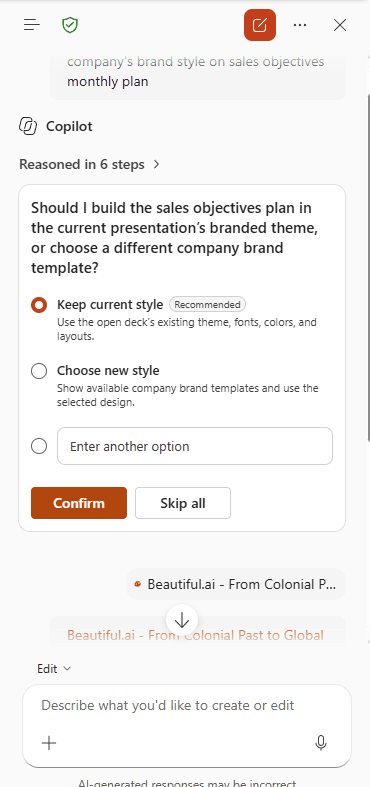
Copilot can generate a presentation from a prompt or source document without requiring the user to bring a finished slide template first. PowerPoint’s built-in design and theme options provide a starting point. This is helpful for a general first draft.
If the goal is a repeatable company design system rather than a one-off draft, evaluate the master and reusable layouts in the resulting .pptx.
Slidely AI
Slidely AI also offers design starting points and tools for creating PowerPoint masters and layouts.
When working from a PDF or screenshot, separate visual inspiration from exact reconstruction. Review fonts, spacing and editable objects before treating the result as an approved company template.
Our take
Copilot for a quick draft; Slidely for reusable PPT layouts.
Copilot offers a familiar start without a supplied template. Slidely also provides design starting points and tools for creating masters. Test the reusable deck, not only the first draft.