
Step 1
Begin by clicking the Library button in the Wizards menu on the sidebar. This action opens the library.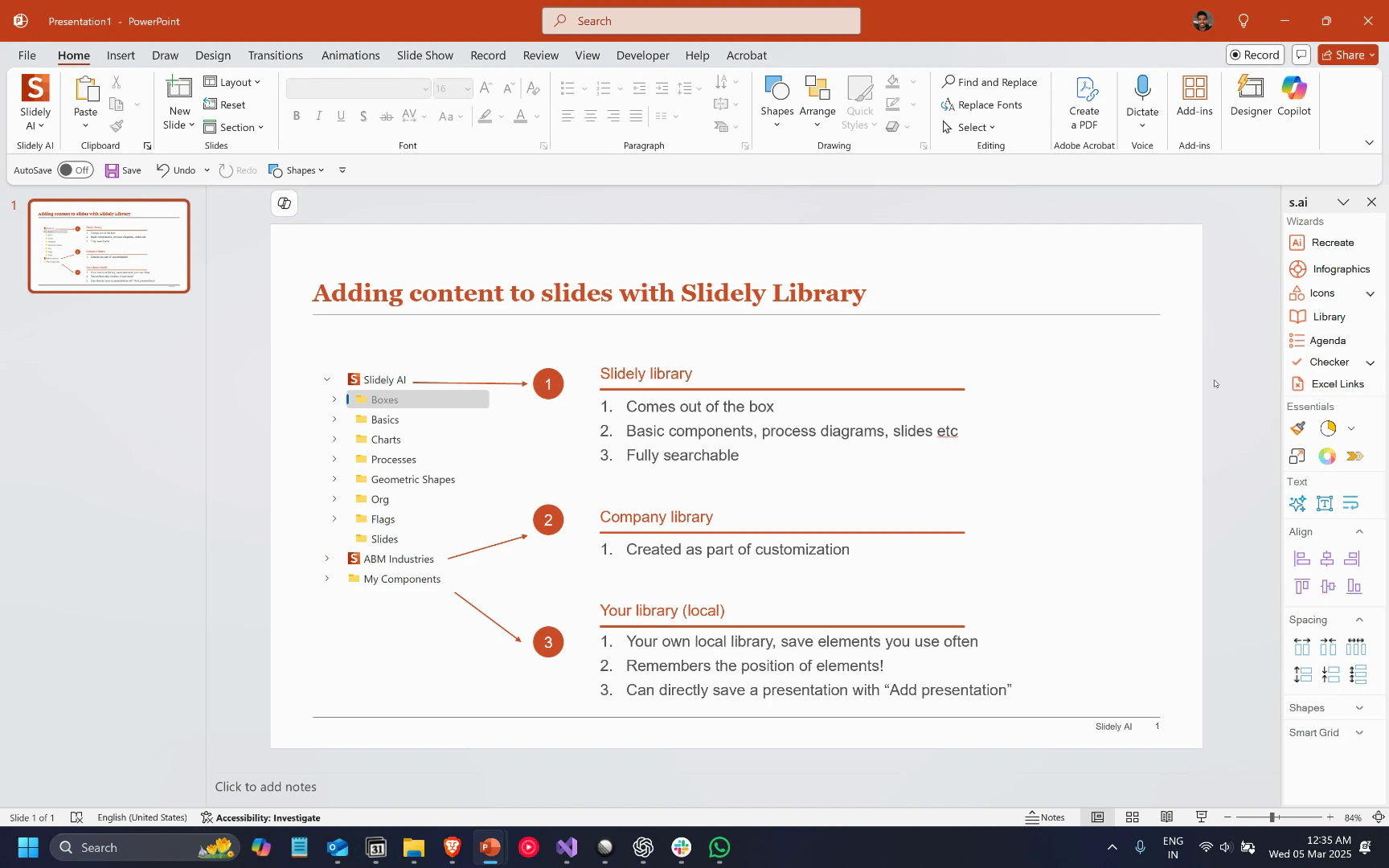
Step 2
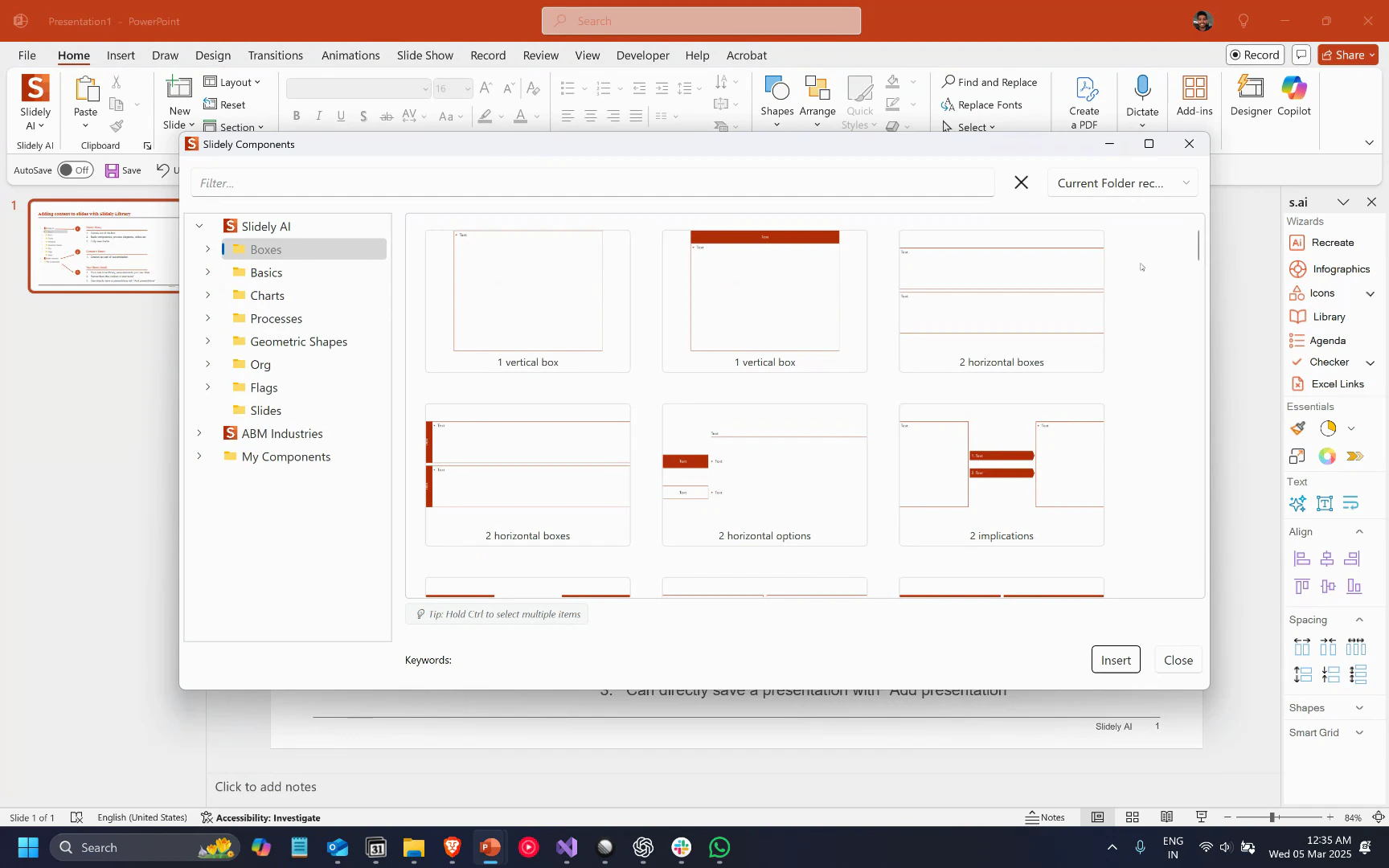
Notice the three types of libraries: Slidely library, company library, and my components, which is your individual library. Start with the Slidely library. It’s packed with elements like different types of boxes, charts, process diagrams, geometric shapes, and slides. Each of these elements can be directly inserted and will adopt your company’s color scheme. For instance, if you insert four boxes into a new slide, they’ll automatically take on your color theme.Step 3
Search for different types of slides by use cases and categories to quickly find a great starting point for creating a slide. The library is fully searchable, so you can easily find specific slides, like next step slides.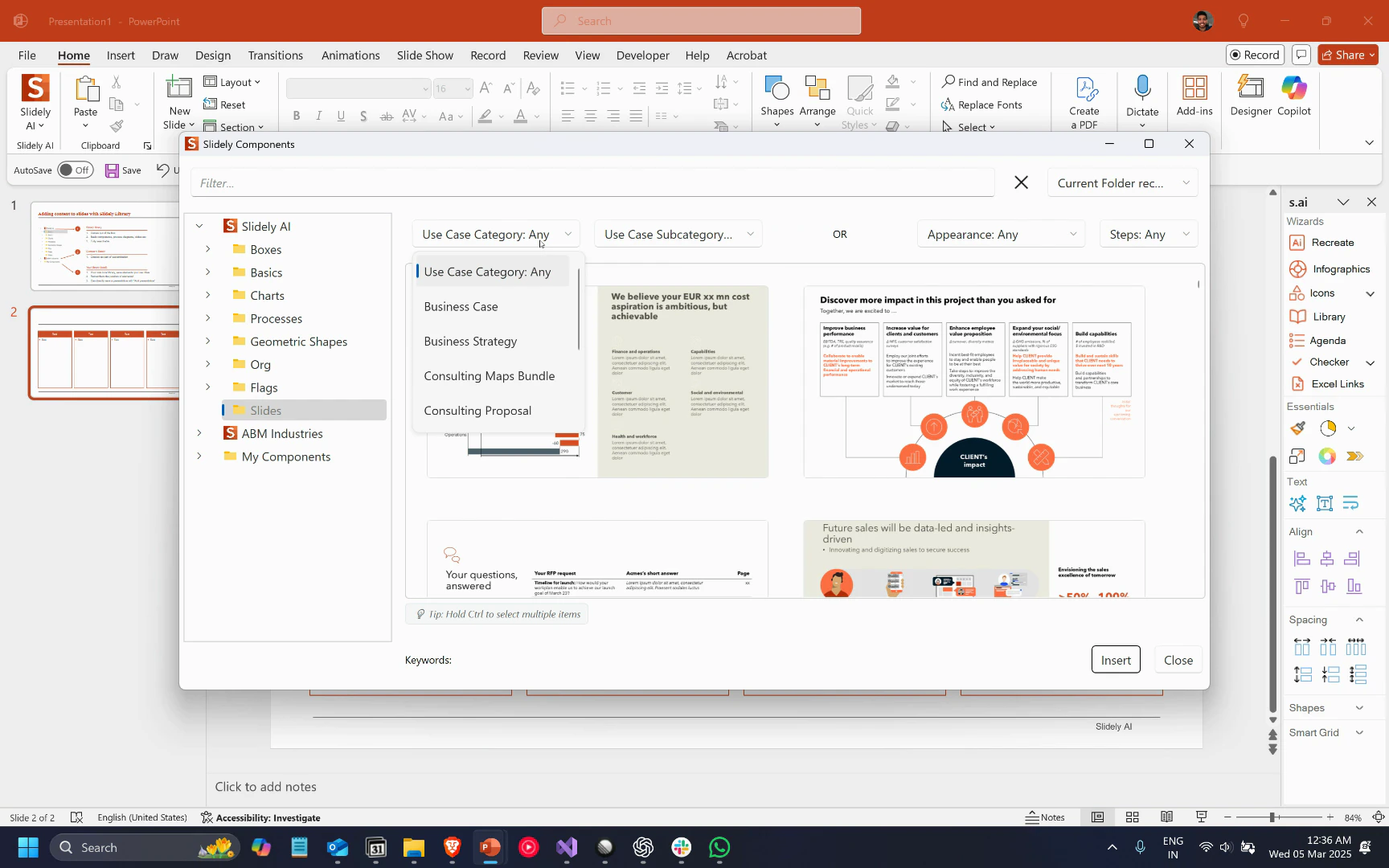
Step 4
Explore the shared team library. This library is accessible to all members of your company. Here, you can add various types of elements like processes, quotes, boxes, rows, and slides. You’re free to categorize them however you like, and the library is completely searchable.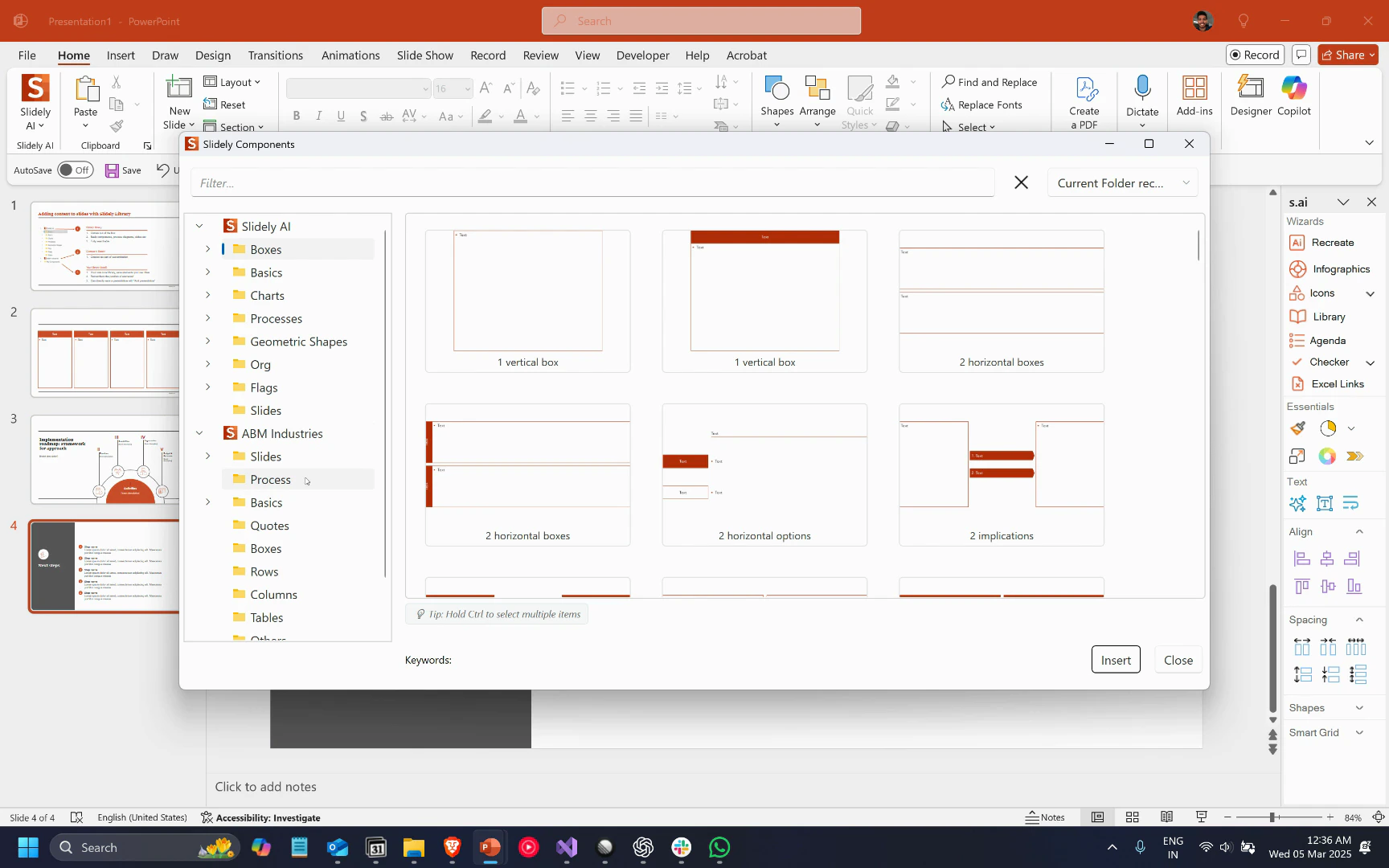
Step 5
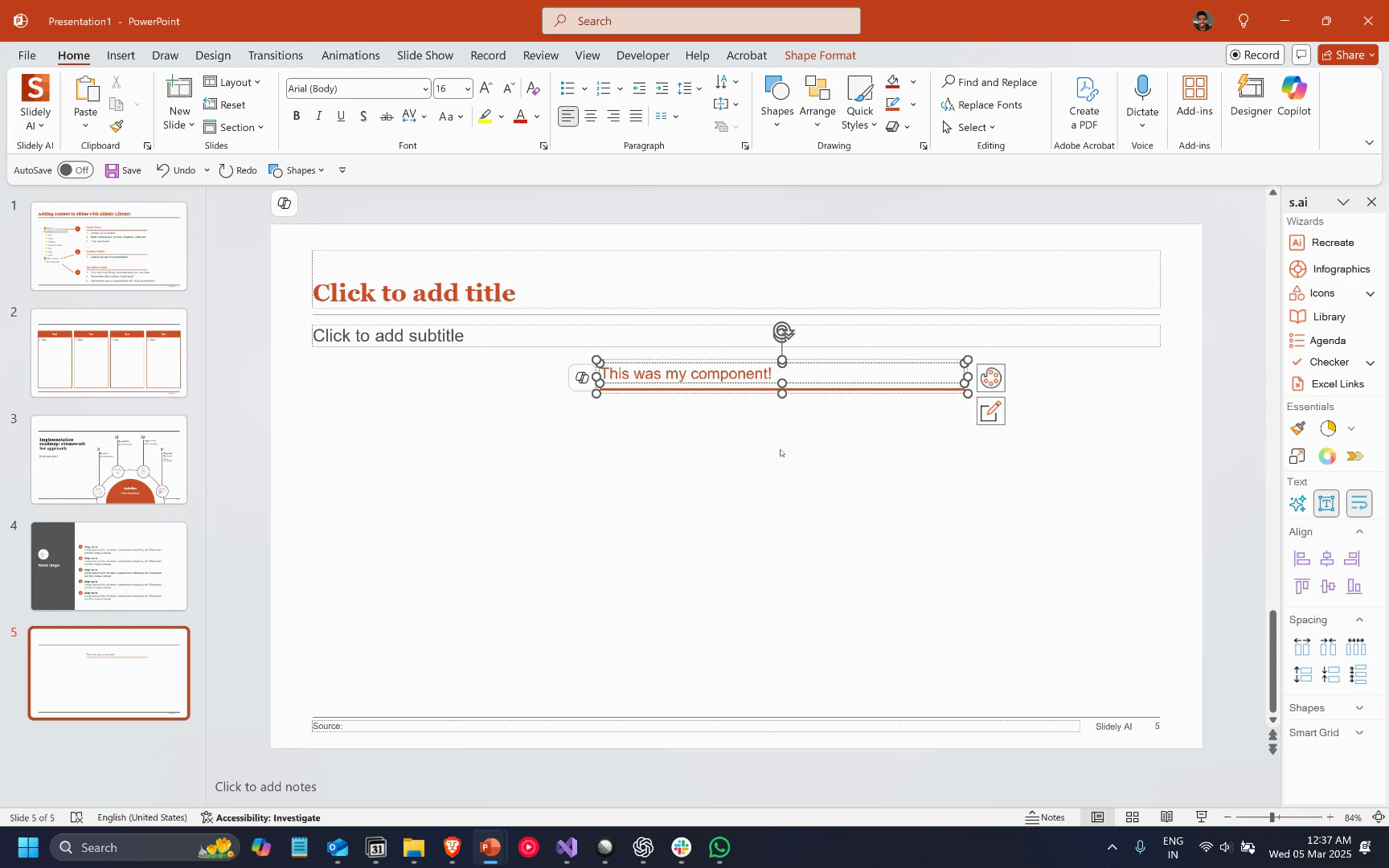
Check out your local library, where you can save any component. For instance, if you frequently use red underlined headings in Slidely, you can right-click on them and save them to the library. After naming it, you can easily reuse this component in future slides. The components also remember their position, which can be handy.