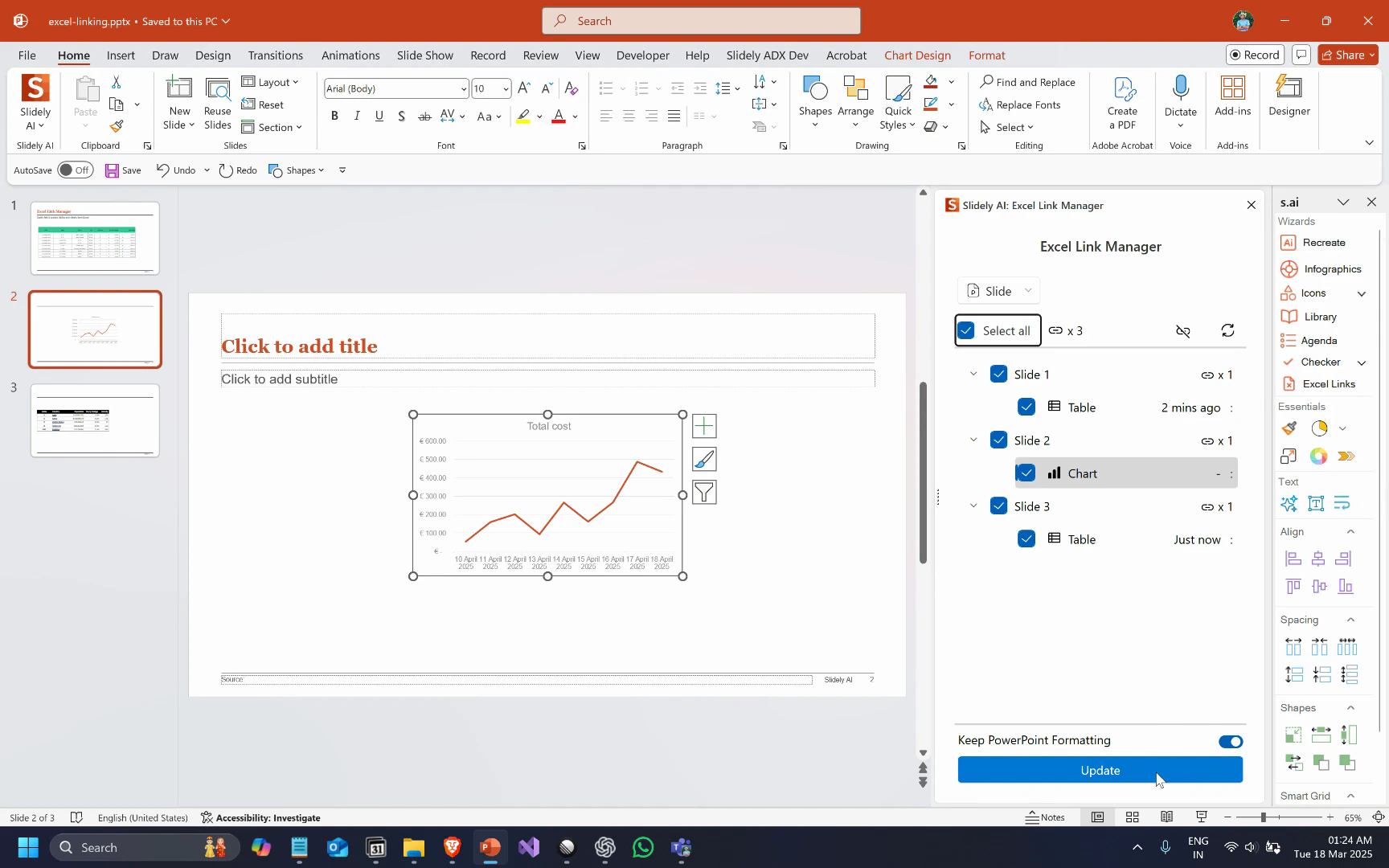

Step 1
Open your PowerPoint presentation. Copy the table you want to link from Excel and paste it into your PowerPoint slide.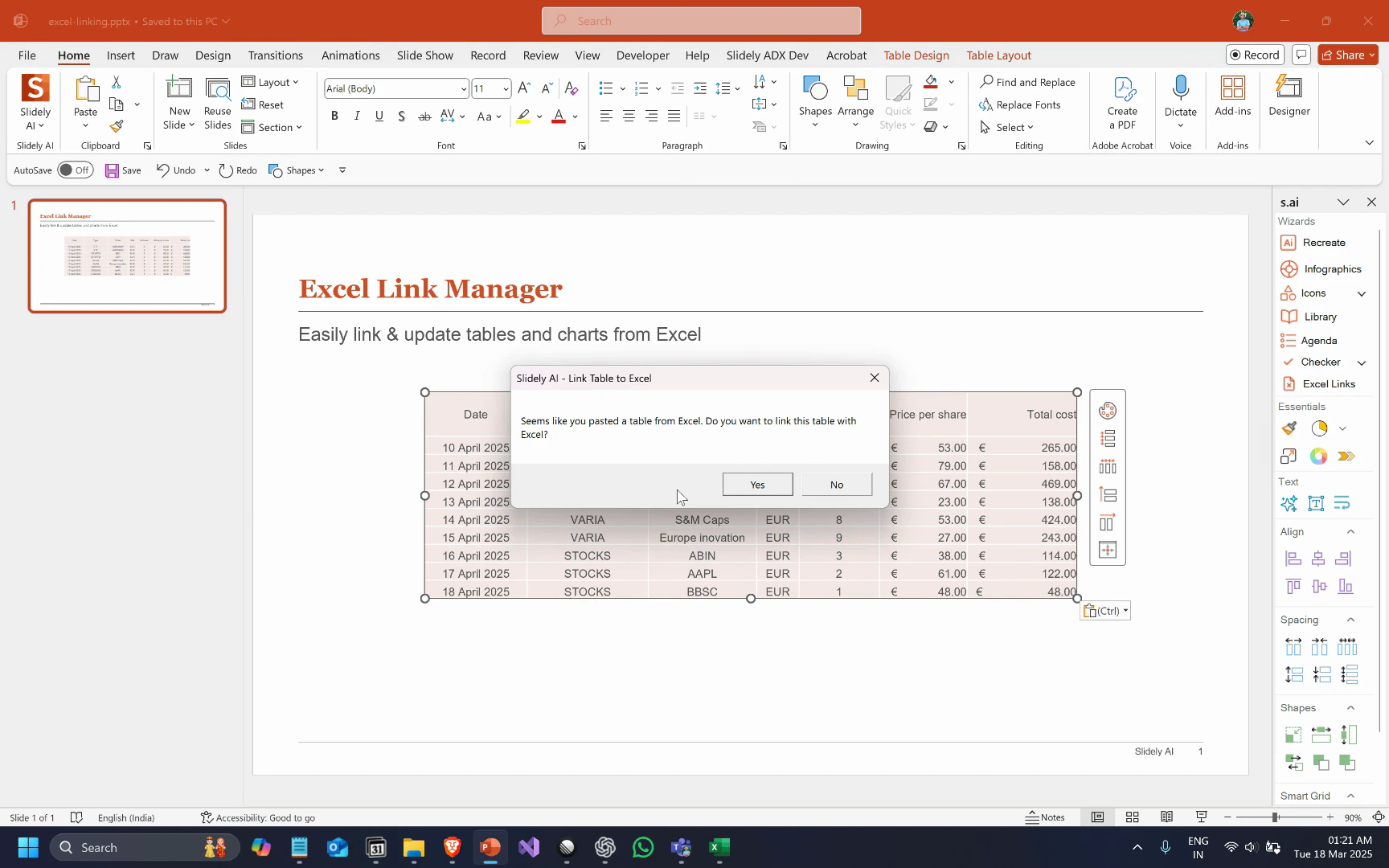
Step 2
When prompted, click Yes to link the table to Excel. The table will retain its formatting, and you’ll see the Refresh from Excel button, indicating the link is active.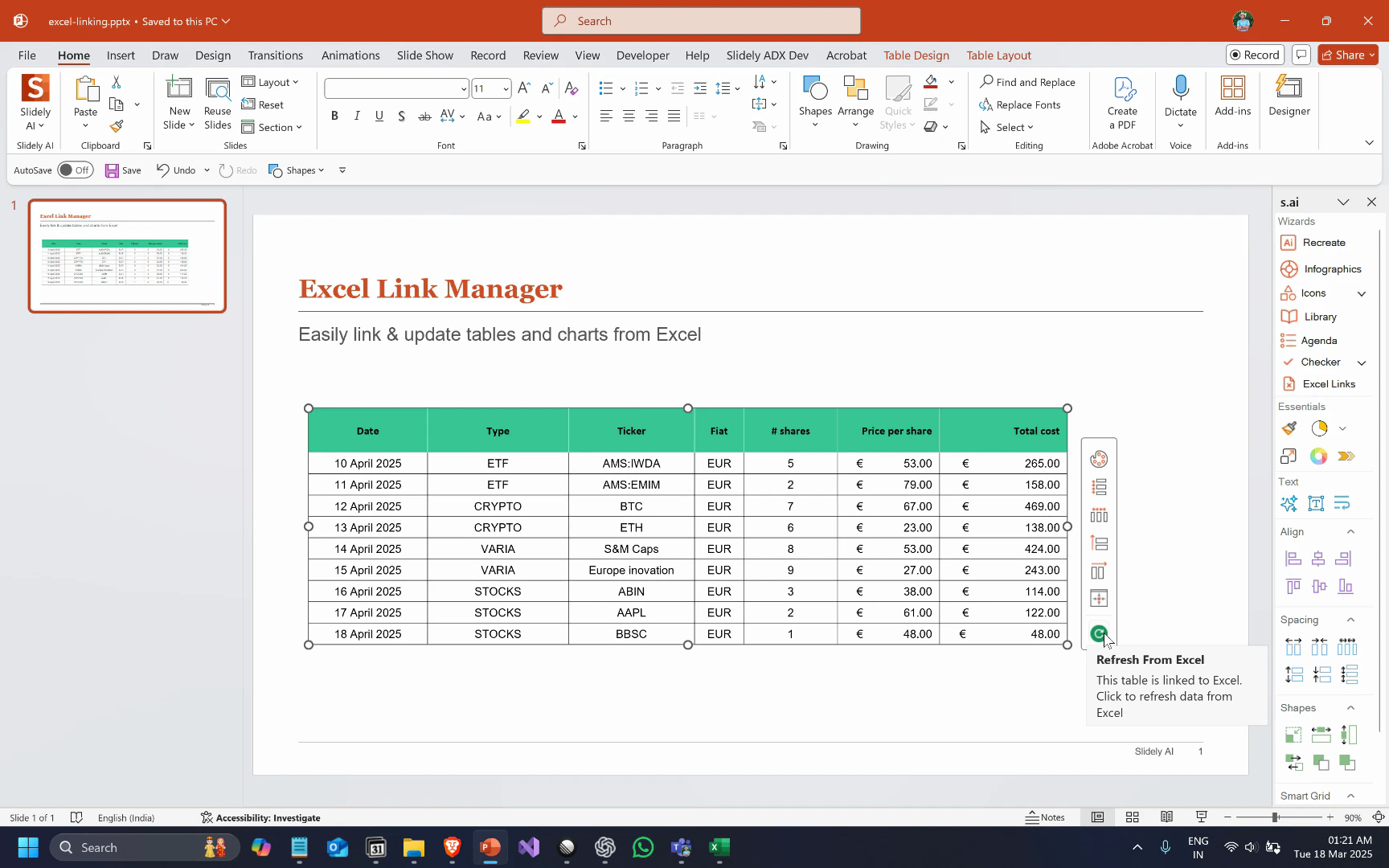
Step 3
Click the Refresh from Excel button to update the table with new data from Excel.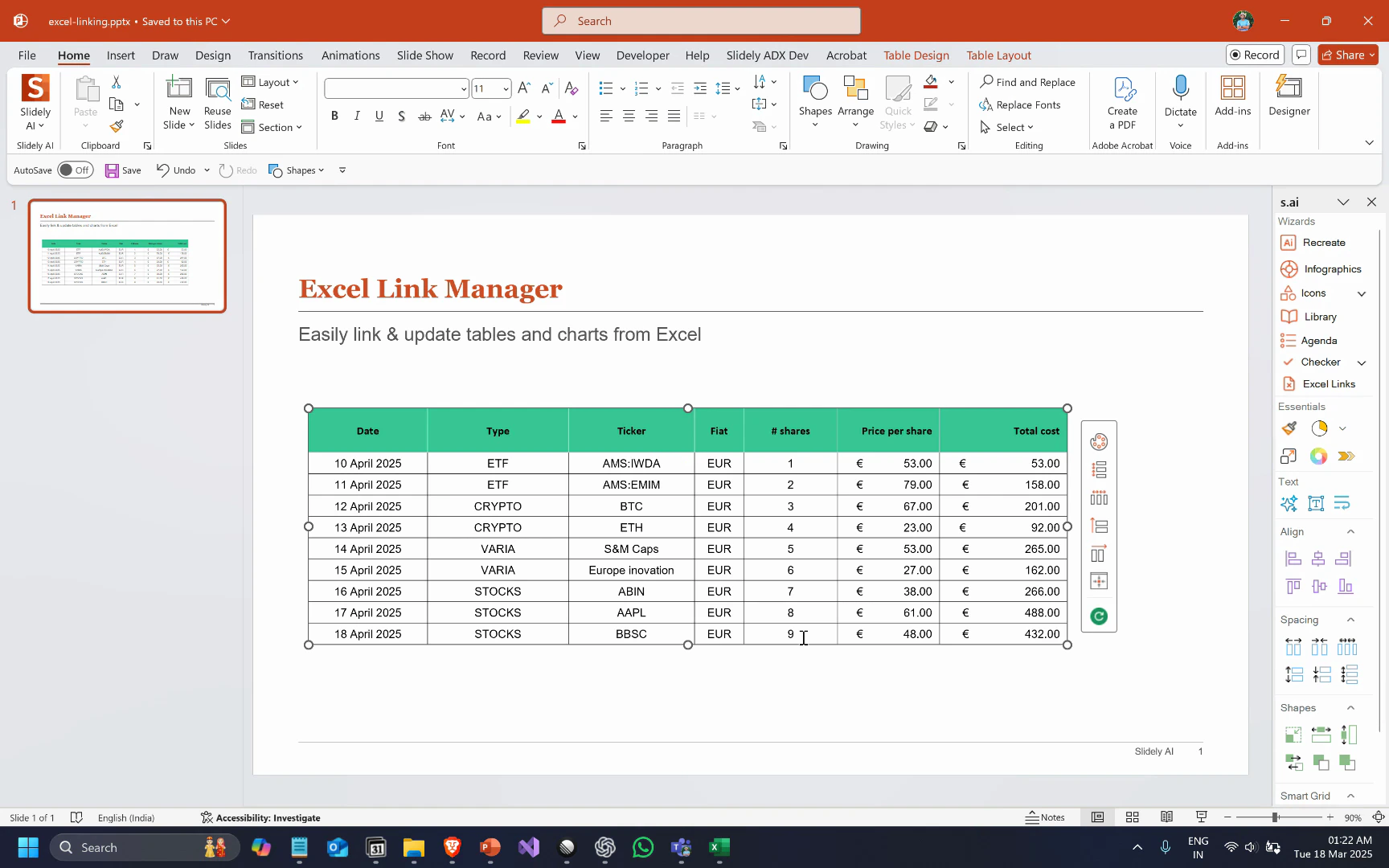
Updating multiple (or all) linked objects in a presentation together
Step 1
Click the Excel Links button in the sidebar to open the Excel Link Manager. It displays all linked objects in your presentation.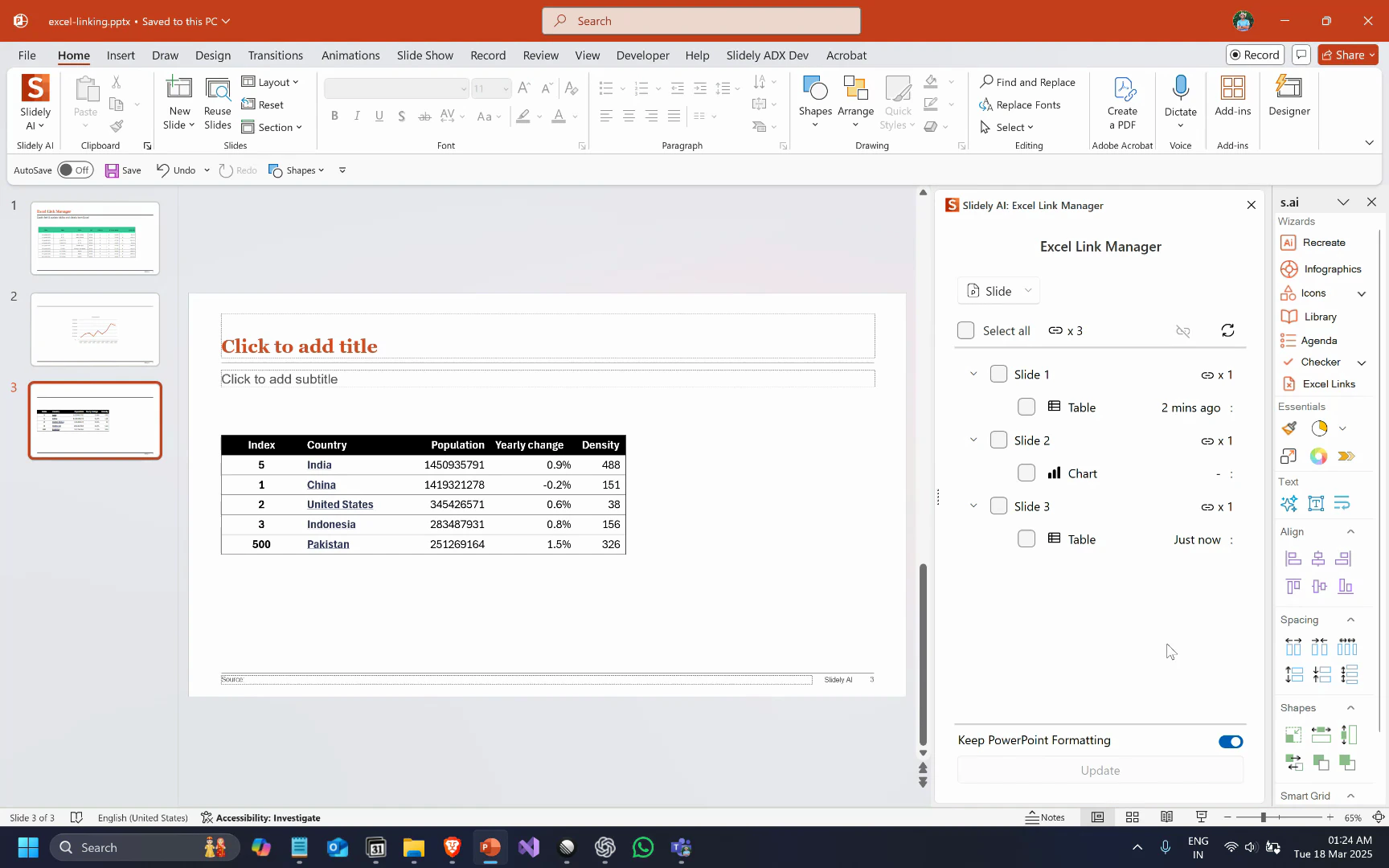
Step 2
Select all the objects you want to update. Optionally, if you want to revert all objects to their Excel formatting, disable the “Keep PowerPoint formatting” toggle. Click the Update button.