> ## Documentation Index
> Fetch the complete documentation index at: https://slidely.ai/docs/llms.txt
> Use this file to discover all available pages before exploring further.
# Excel Linking
> Dynamically link Excel objects in PowerPoint
Learn how to seamlessly link tables and charts from Excel to PowerPoint using the Excel Link Manager wizard. This guide will show you how to keep your presentation updated with just a single click.
## Step 1
Open your PowerPoint presentation. Copy the table you want to link from Excel and paste it into your PowerPoint slide.
 ## Step 2
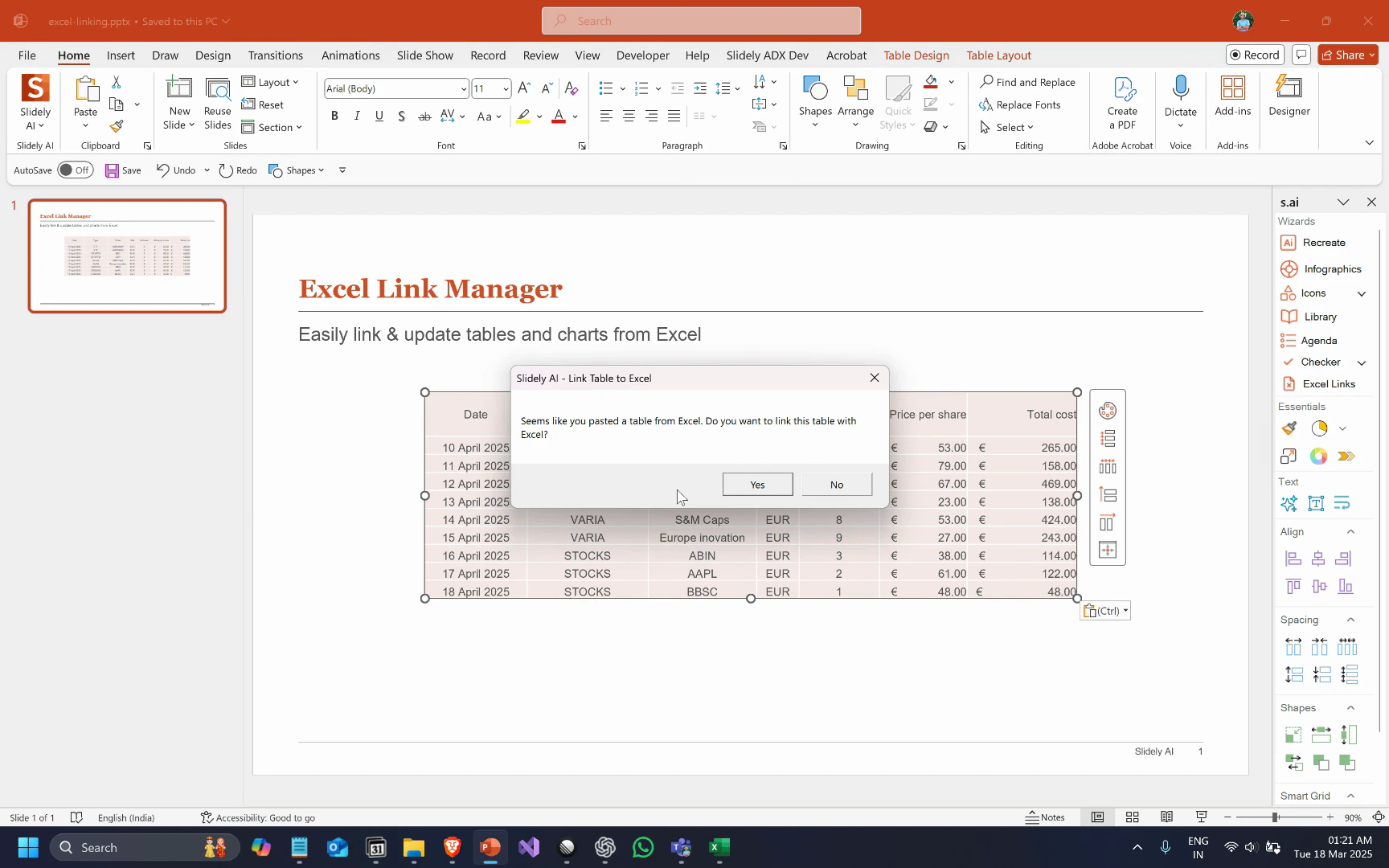
When prompted, click Yes to link the table to Excel. The table will retain its formatting, and you'll see the Refresh from Excel button, indicating the link is active.
## Step 2
When prompted, click Yes to link the table to Excel. The table will retain its formatting, and you'll see the Refresh from Excel button, indicating the link is active.
 ## Step 3
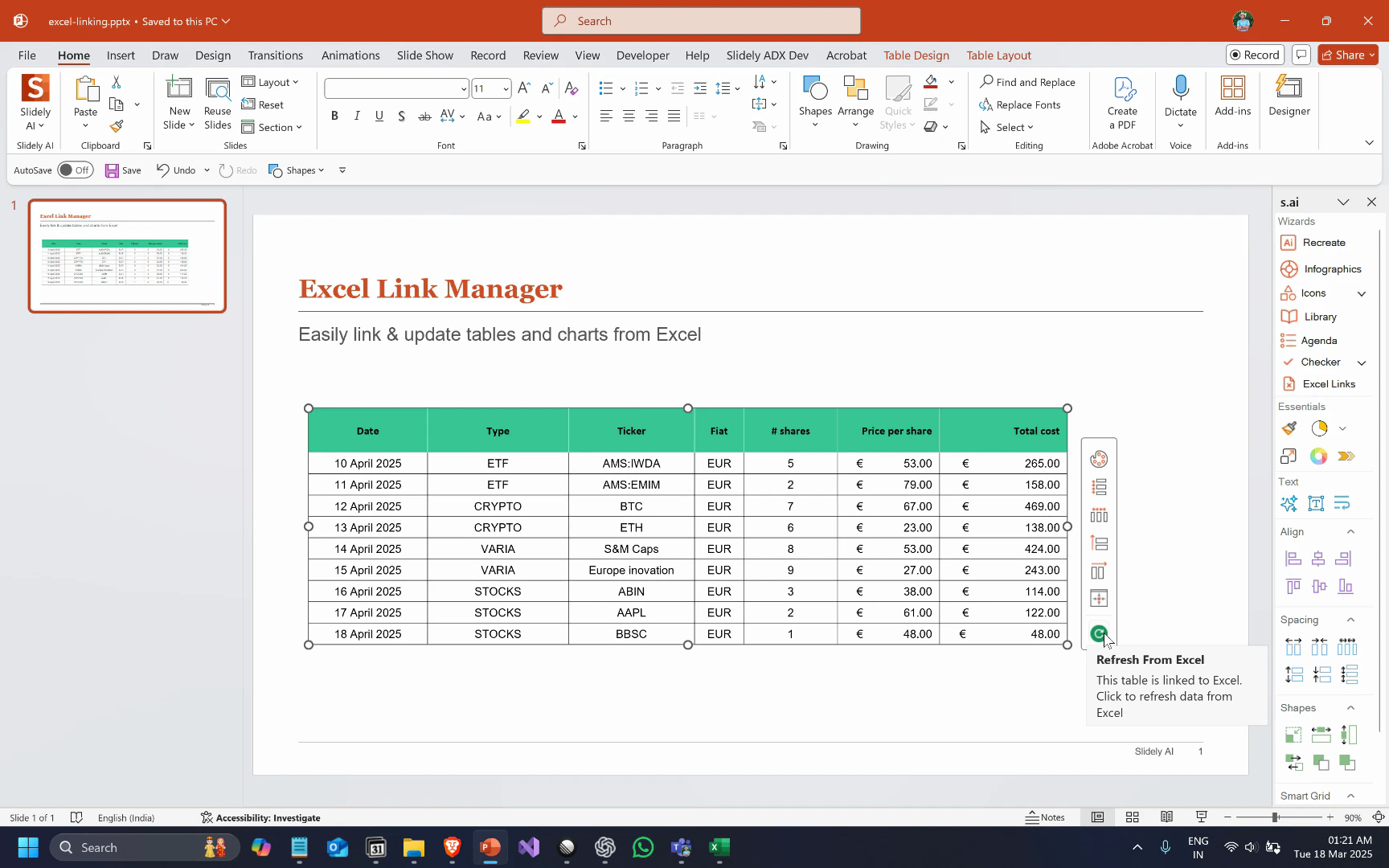
Click the Refresh from Excel button to update the table with new data from Excel.
## Step 3
Click the Refresh from Excel button to update the table with new data from Excel.
 ## Updating multiple (or all) linked objects in a presentation together
## Step 1
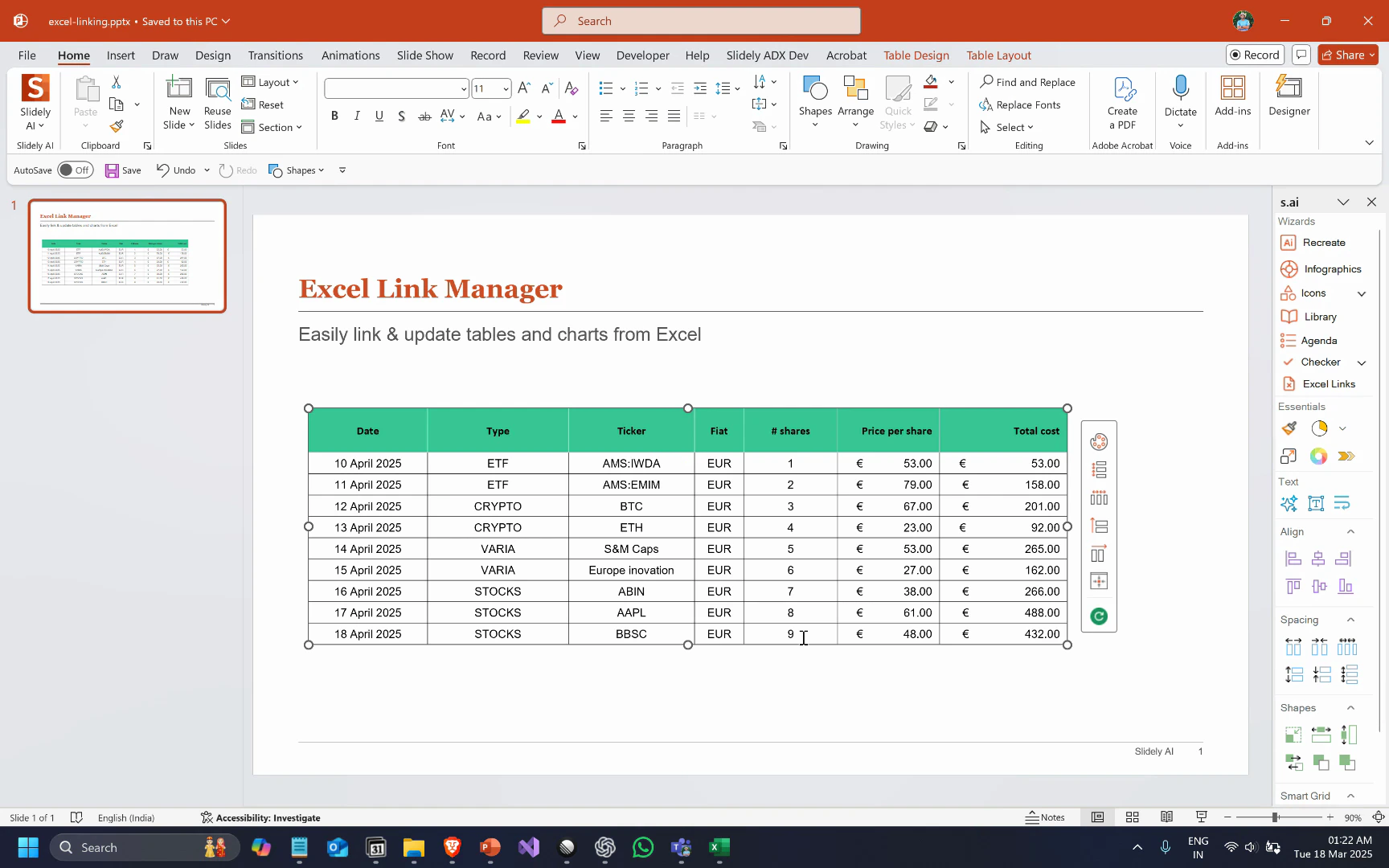
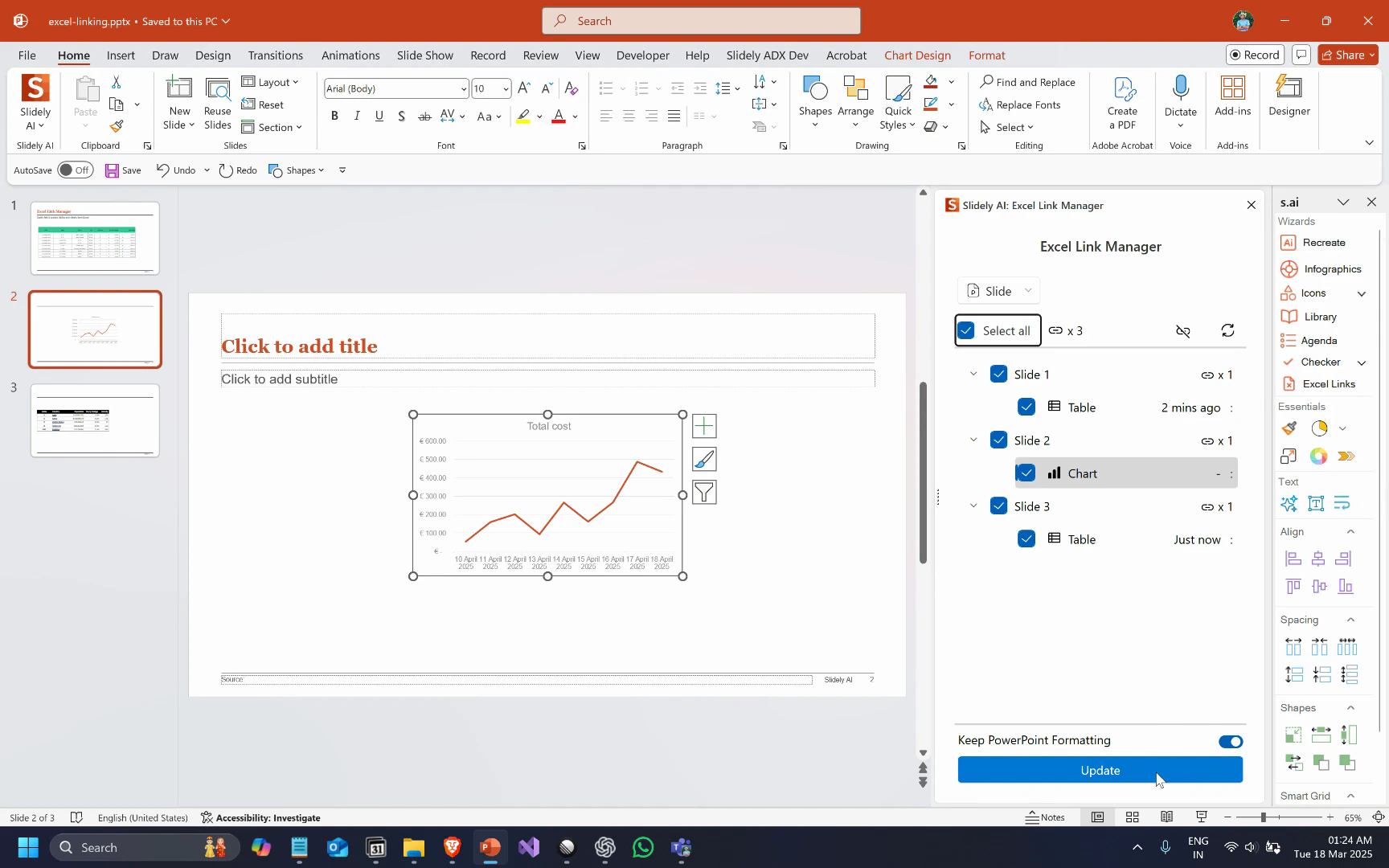
Click the Excel Links button in the sidebar to open the Excel Link Manager. It displays all linked objects in your presentation.
## Updating multiple (or all) linked objects in a presentation together
## Step 1
Click the Excel Links button in the sidebar to open the Excel Link Manager. It displays all linked objects in your presentation.
 ## Step 2
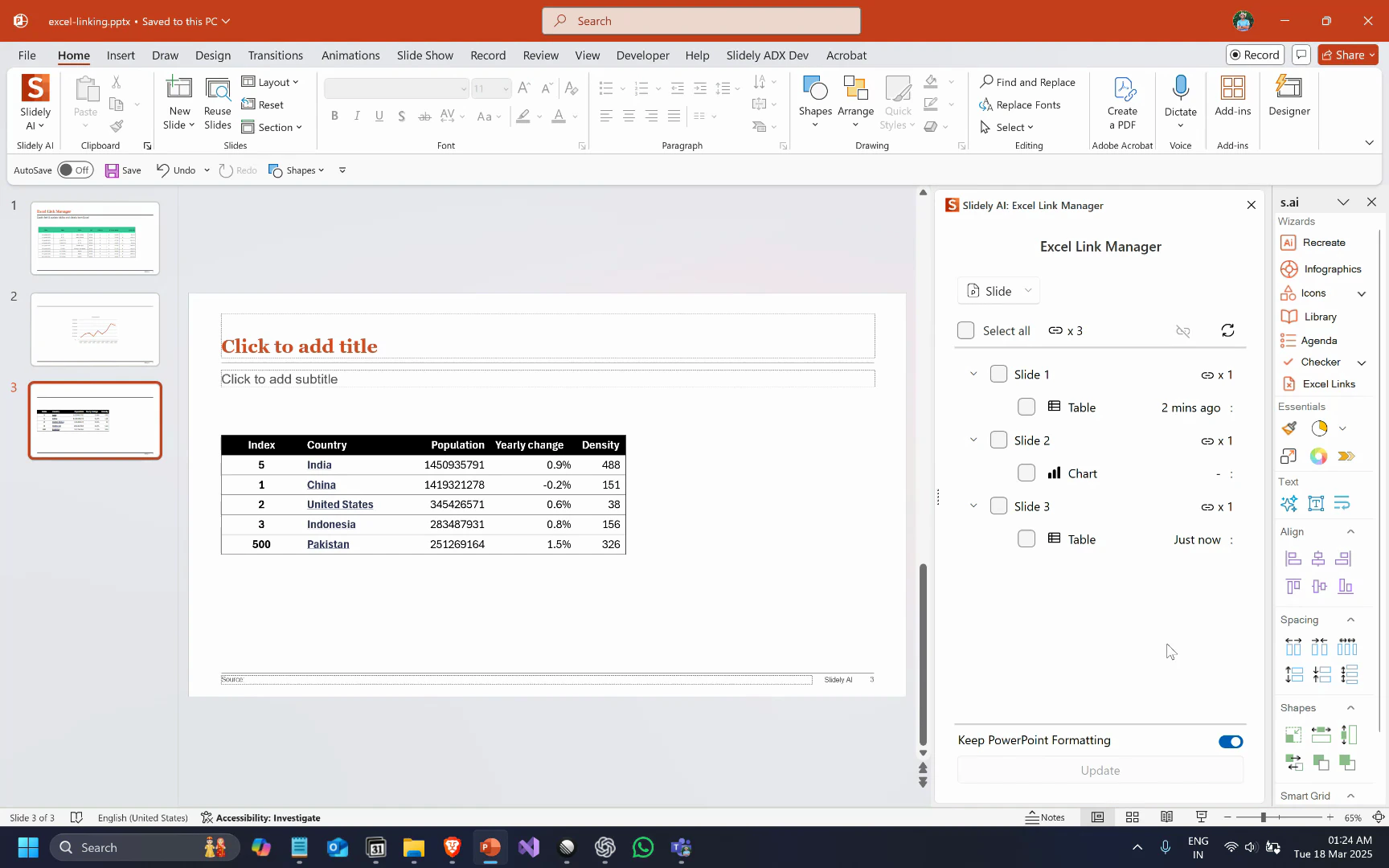
Select all the objects you want to update. Optionally, if you want to revert all objects to their Excel formatting, disable the "Keep PowerPoint formatting" toggle.
Click the Update button.
## Step 2
Select all the objects you want to update. Optionally, if you want to revert all objects to their Excel formatting, disable the "Keep PowerPoint formatting" toggle.
Click the Update button.
 That's it! You've mastered the Excel Link Manager to link and update charts and tables from Excel to PowerPoint.