> ## Documentation Index
> Fetch the complete documentation index at: https://slidely.ai/docs/llms.txt
> Use this file to discover all available pages before exploring further.
# Configure Google Workspace
This setup requires the Slidely SSO configuration details, including the ACS URL and Entity ID. If these haven't been shared with you, please contact your account POC.
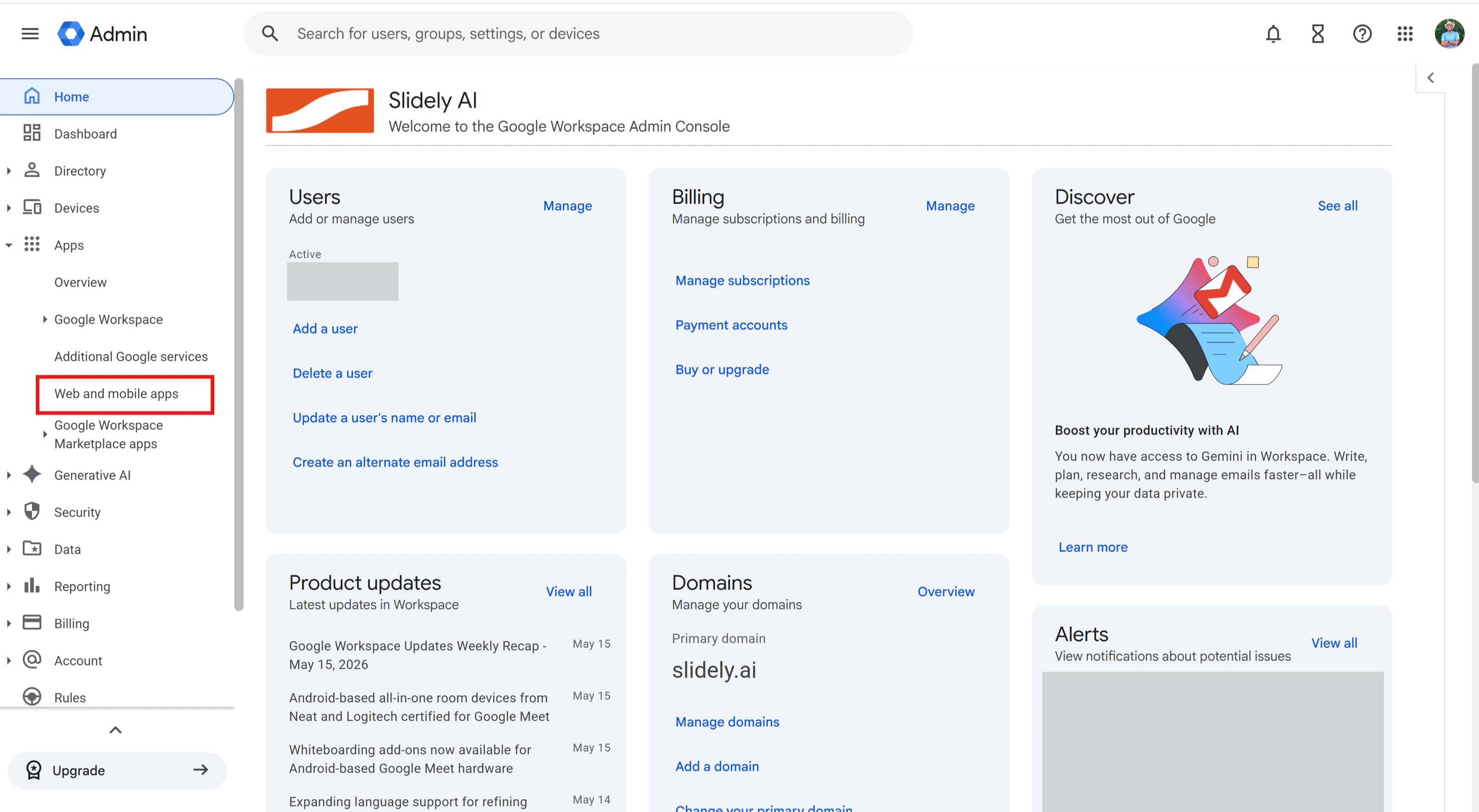
1. Open the [Google Admin Console](https://admin.google.com/) and sign in with an administrator account. In the left sidebar, go to **Apps** > **Web and mobile apps**.
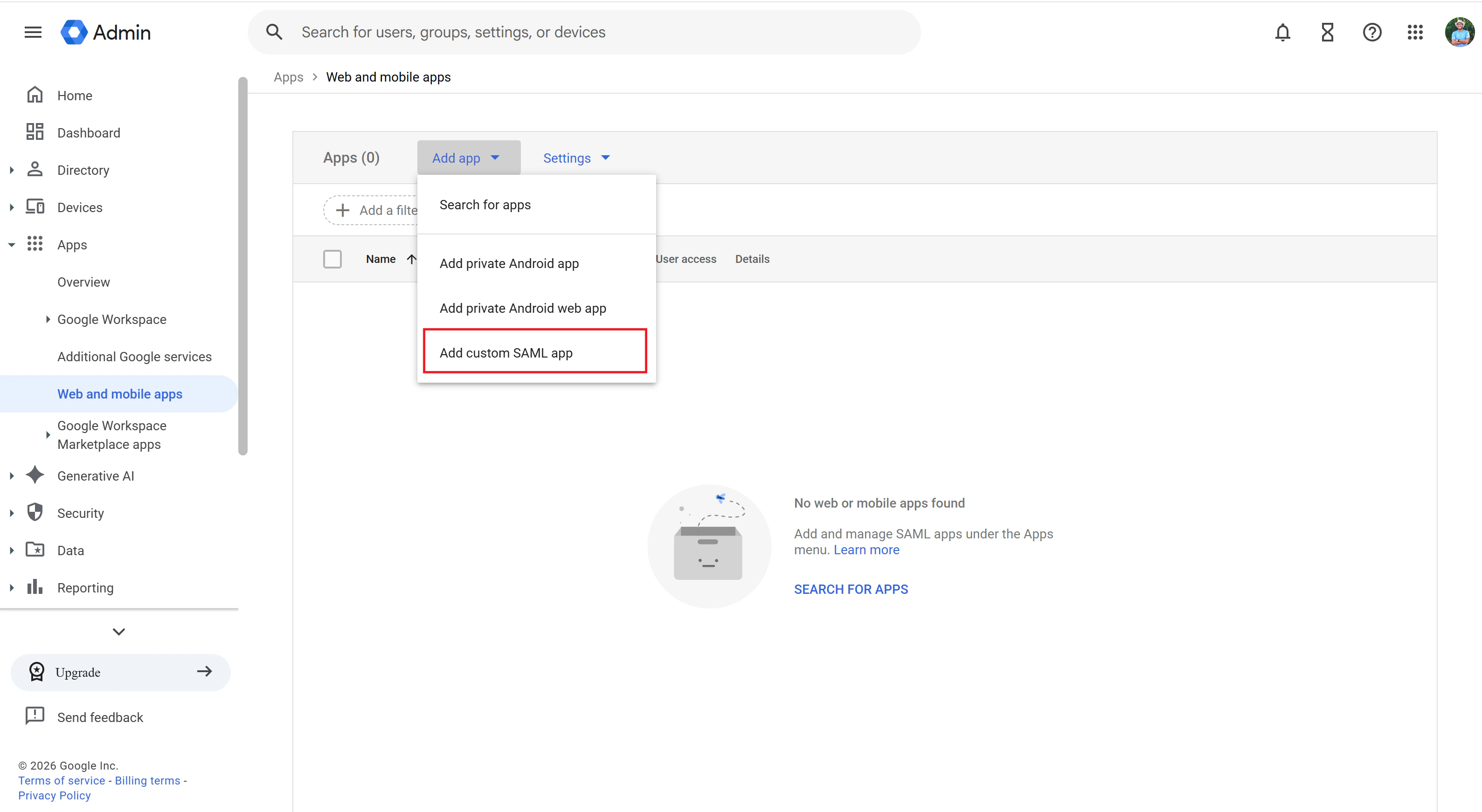
 2. Click **Add app** and select **Add custom SAML app**.
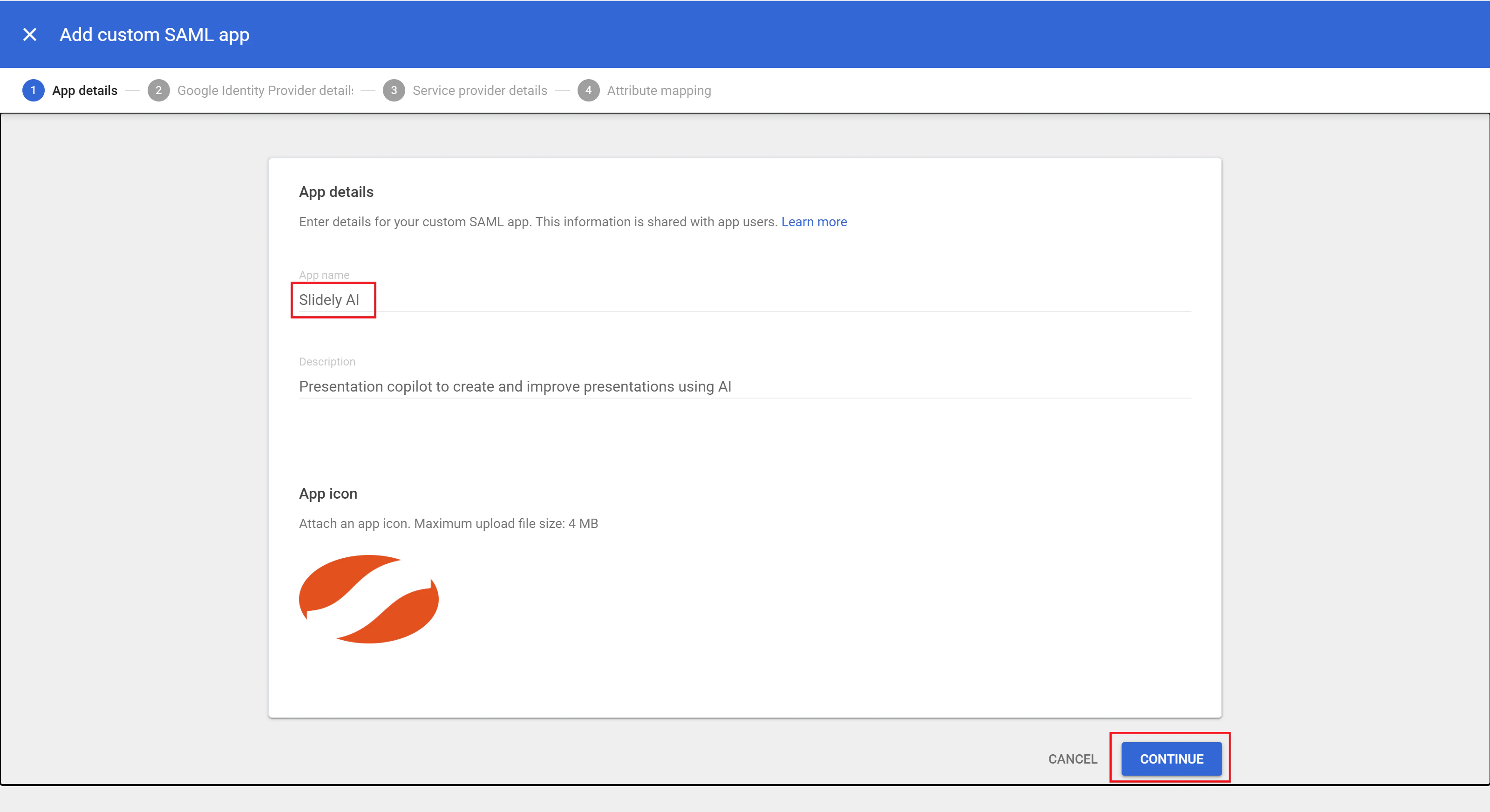
 3. Enter **Slidely AI** as the app name. Optionally, add a description and upload the Slidely AI app icon. Click **Continue**.
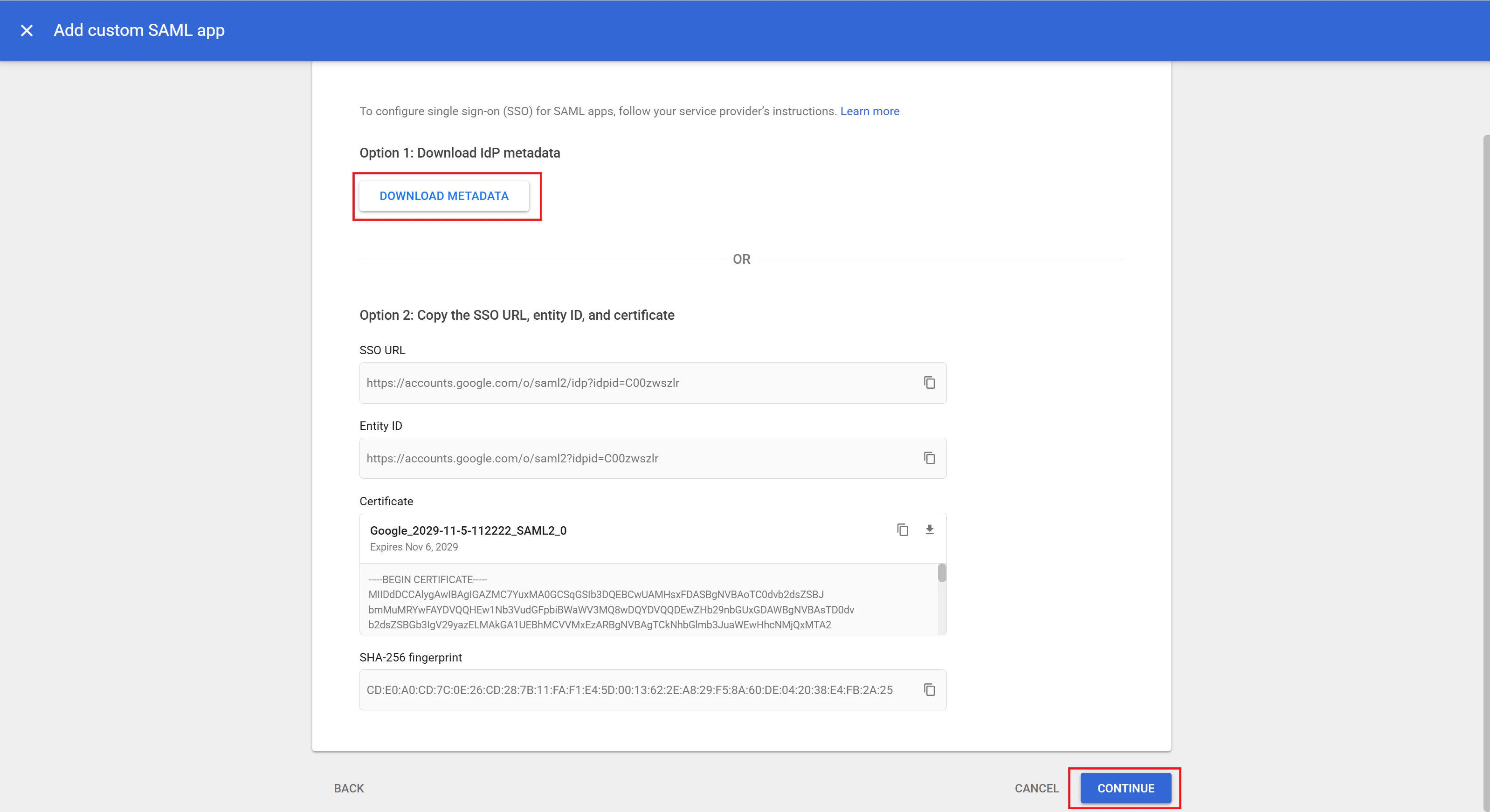
 4. On the **Google Identity Provider details** page, click **Download metadata**. Share the downloaded metadata file with the Slidely AI team. Click **Continue**.
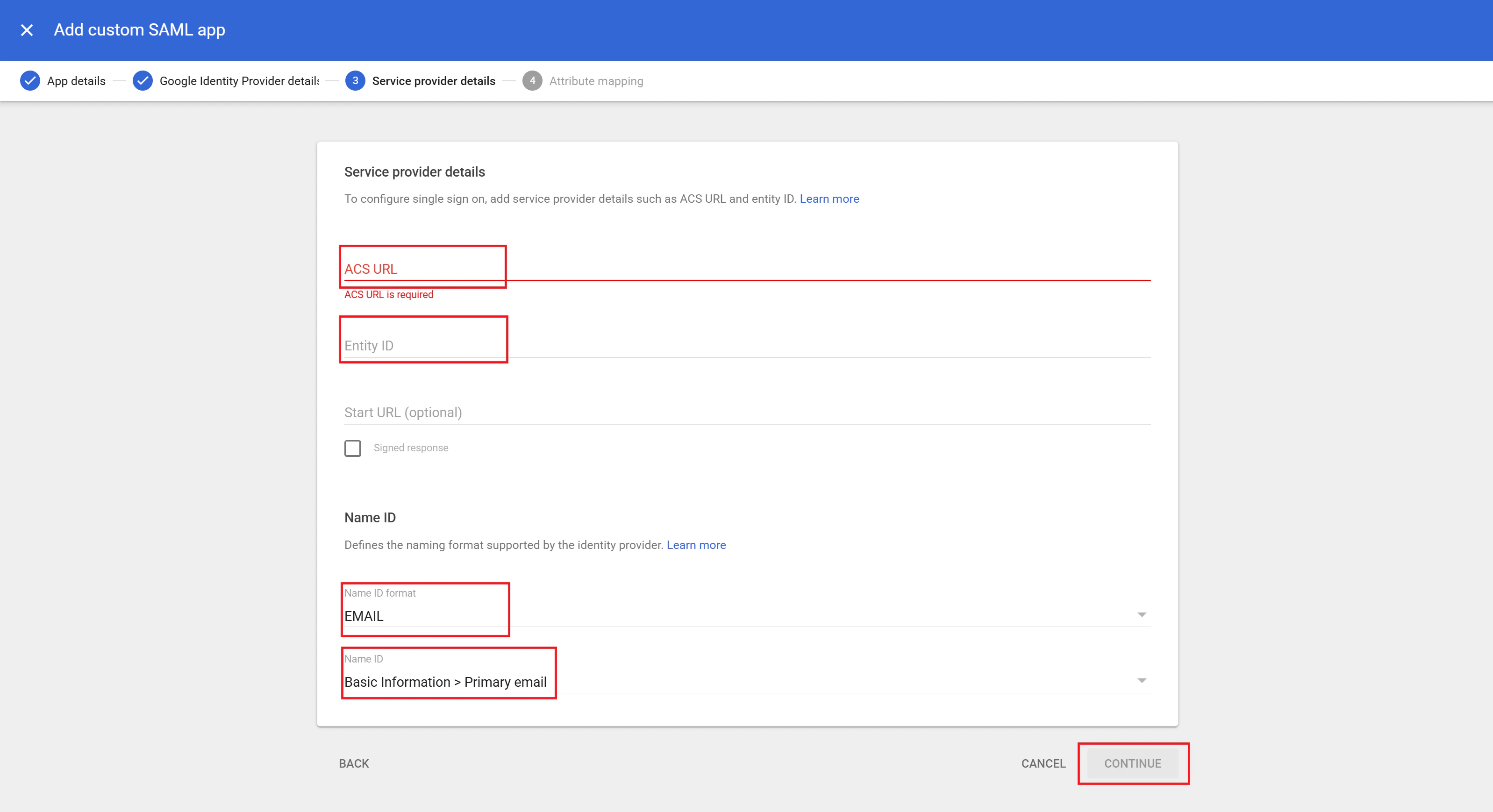
 5. On the **Service provider details** page, enter the **ACS URL** and **Entity ID** provided by the Slidely AI team. Set **Name ID format** to **EMAIL** and set **Name ID** to **Basic Information > Primary email**. Click **Continue**.
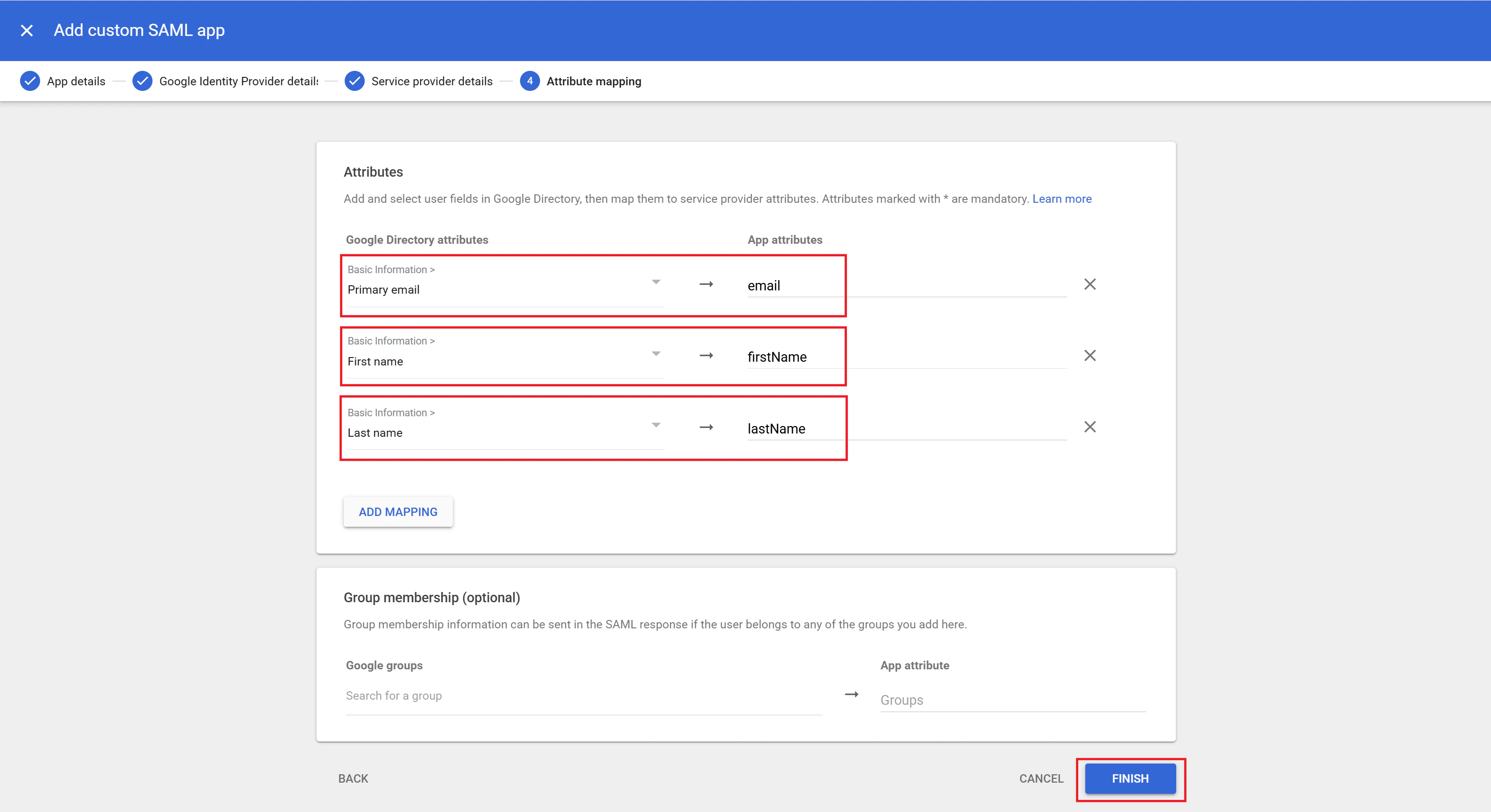
 6. On the **Attribute mapping** page, add the following mappings:
* **Basic Information > Primary email** → `email`
* **Basic Information > First name** → `firstName`
* **Basic Information > Last name** → `lastName`
Click **Finish**.
6. On the **Attribute mapping** page, add the following mappings:
* **Basic Information > Primary email** → `email`
* **Basic Information > First name** → `firstName`
* **Basic Information > Last name** → `lastName`
Click **Finish**.
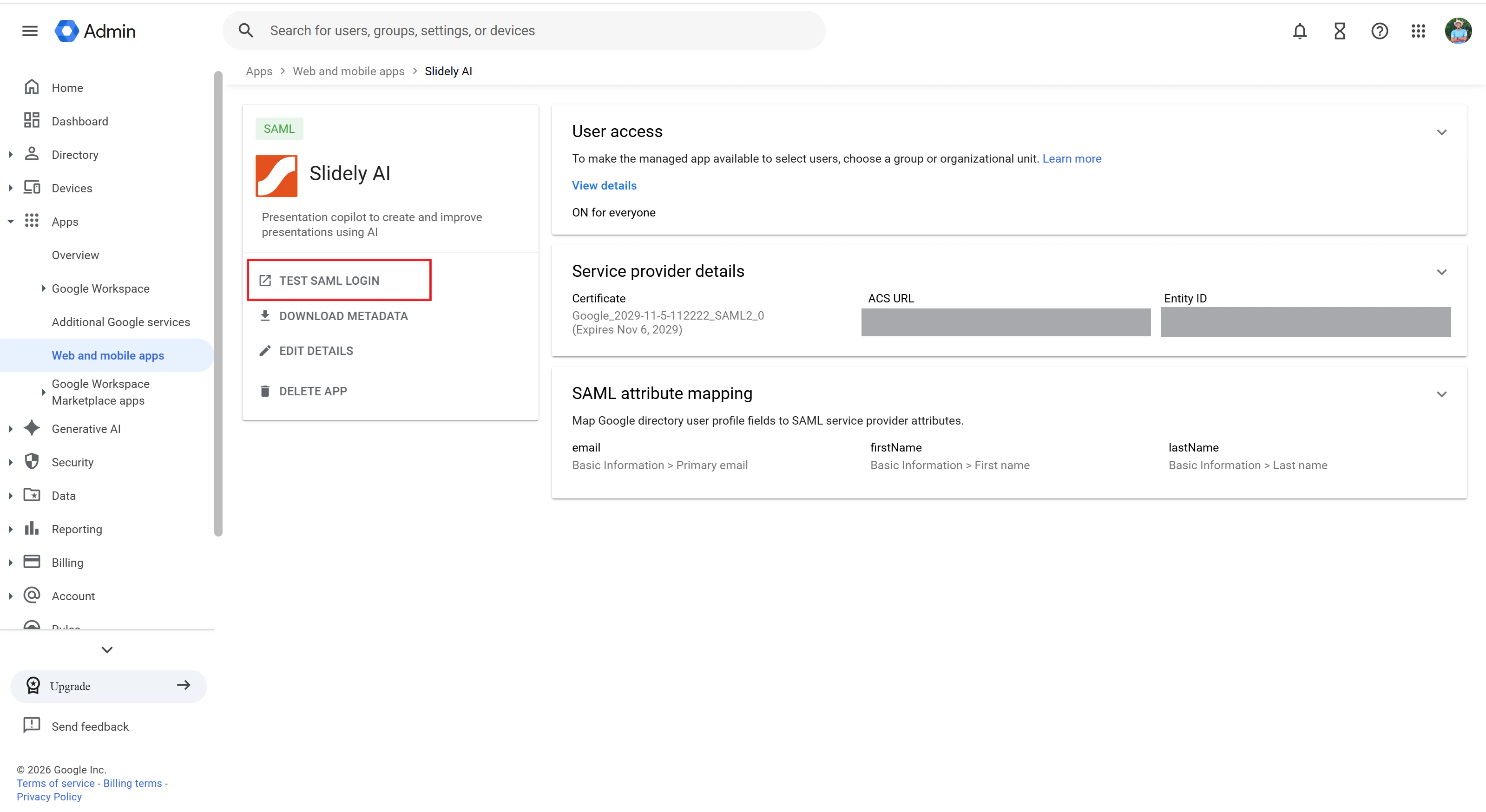
 7. Open the newly created **Slidely AI** SAML app and click **User access**.
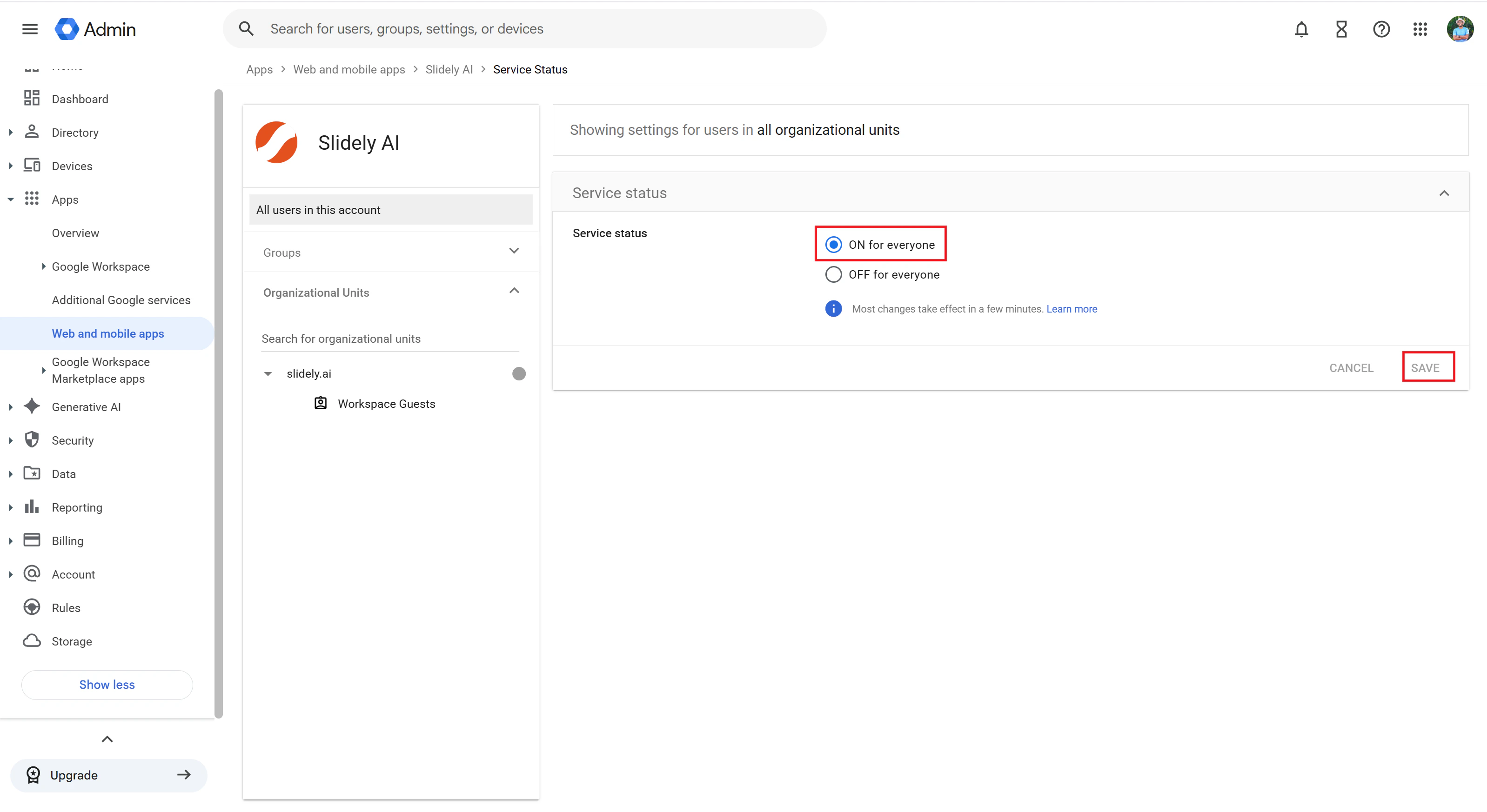
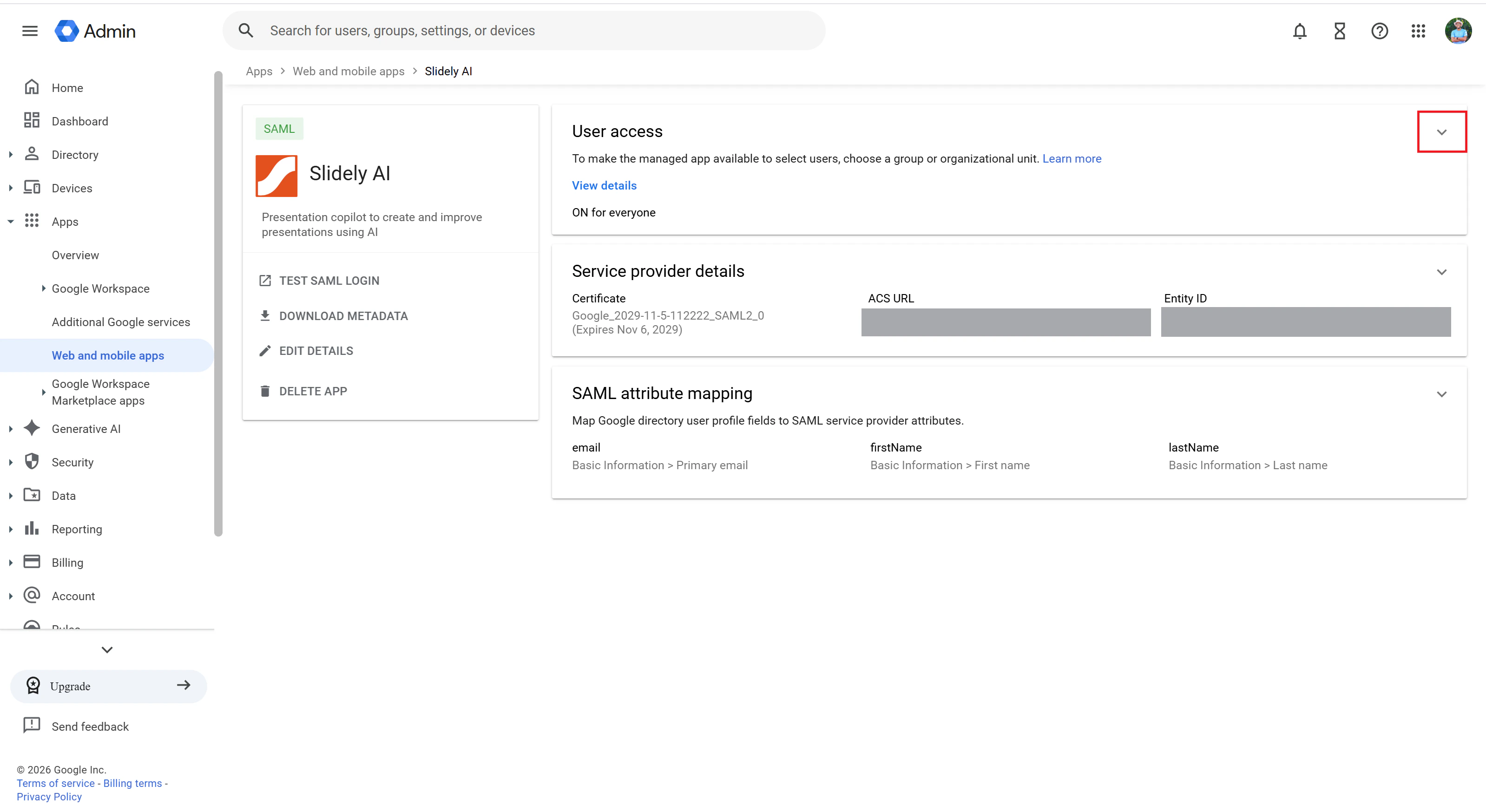 8. Turn the app **ON for everyone**, or enable it for the required organizational units or groups. Click **Save**.
 9. Once SSO is configured from Slidely AI's end, open the **Slidely AI** SAML app again and click **Test SAML login** to verify the setup.