> ## Documentation Index
> Fetch the complete documentation index at: https://slidely.ai/docs/llms.txt
> Use this file to discover all available pages before exploring further.
# Configure Microsoft Entra
This setup requires the Slidely SSO Metadata file. If this file hasn't been shared with you, please contact your account POC.
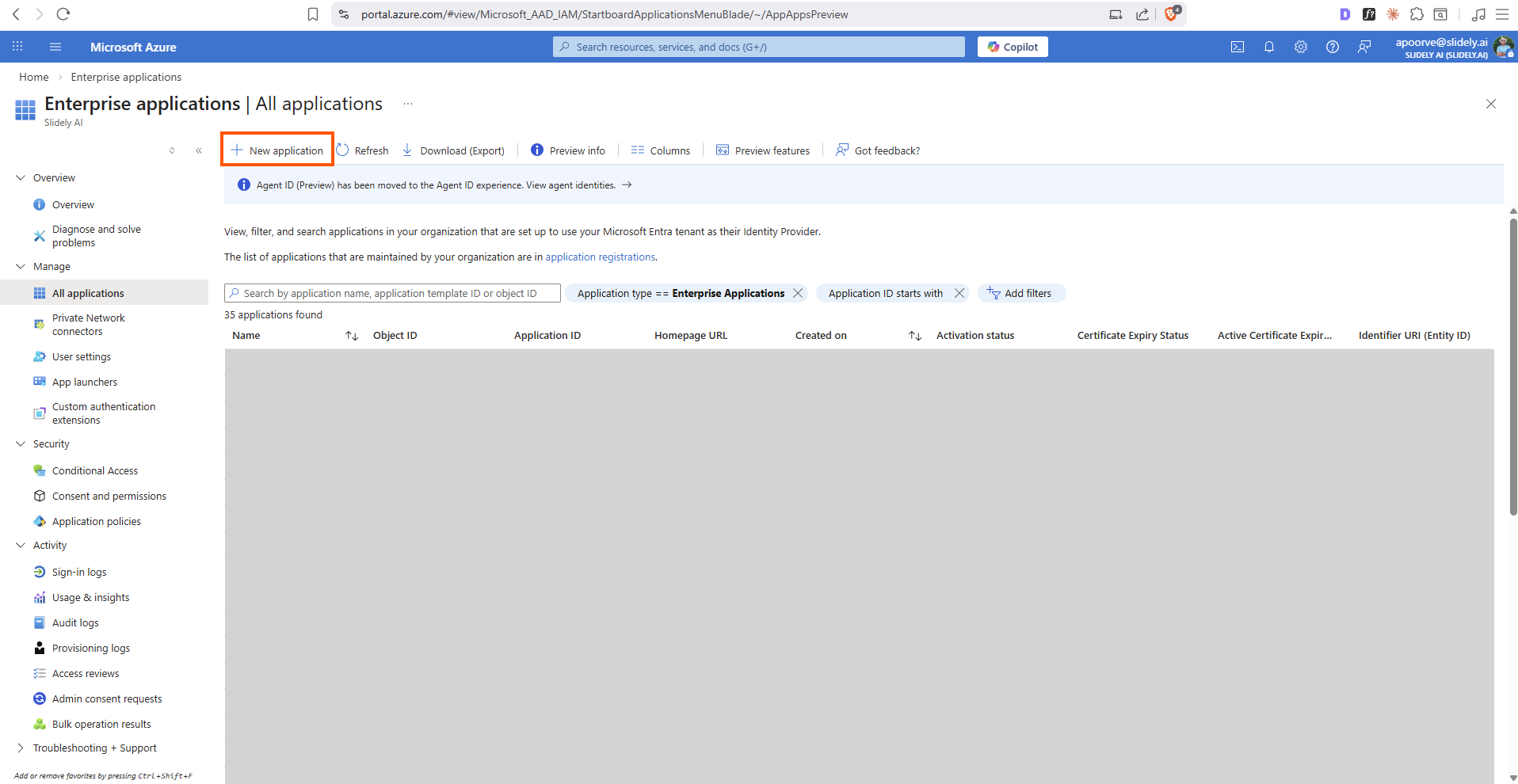
1. Open [Microsoft Azure Enterprise applications page](https://portal.azure.com/#view/Microsoft_AAD_IAM/StartboardApplicationsMenuBlade/~/AppAppsPreview). Click **New application**.
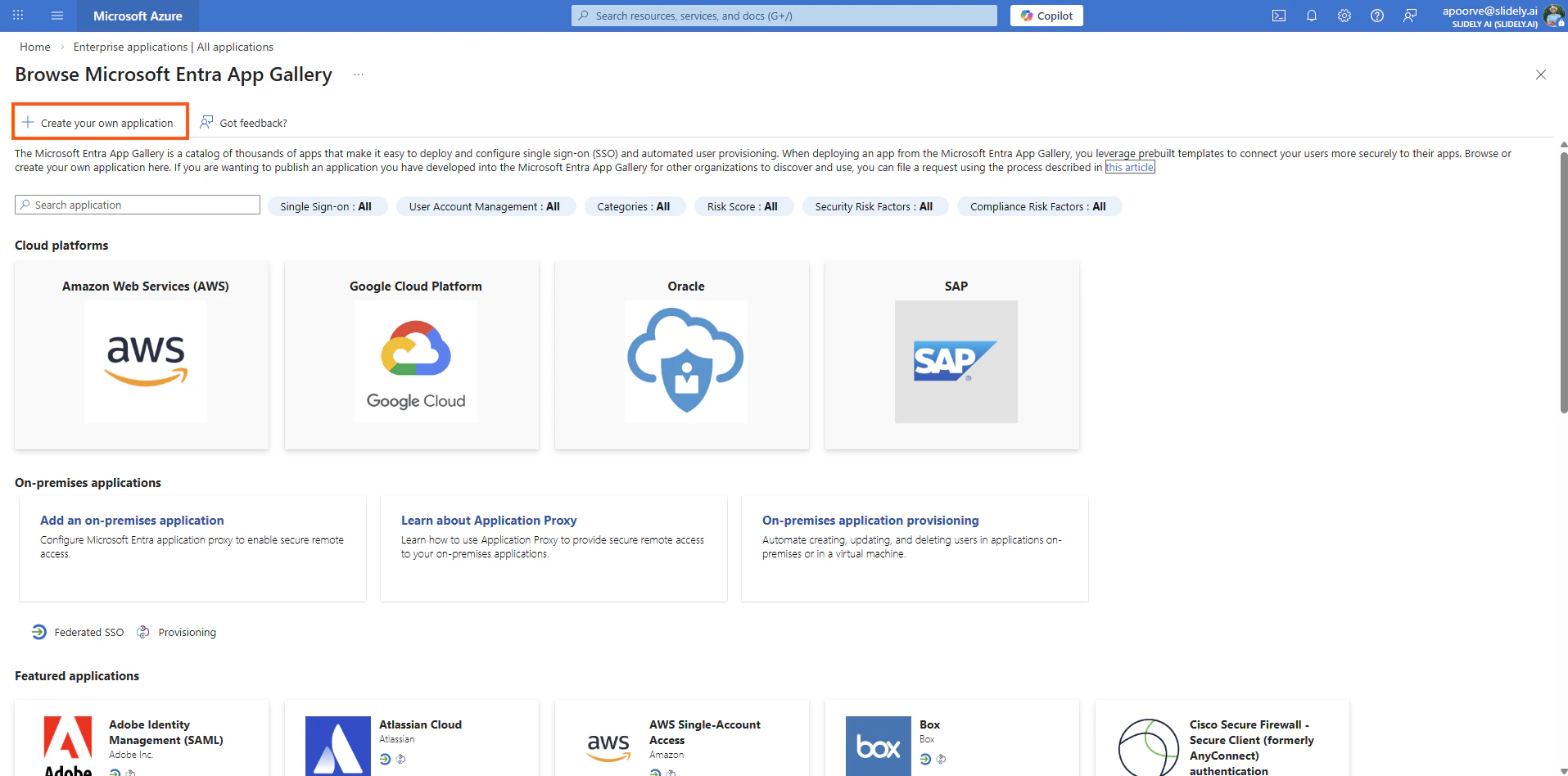
 2. Click **Create your own application.**
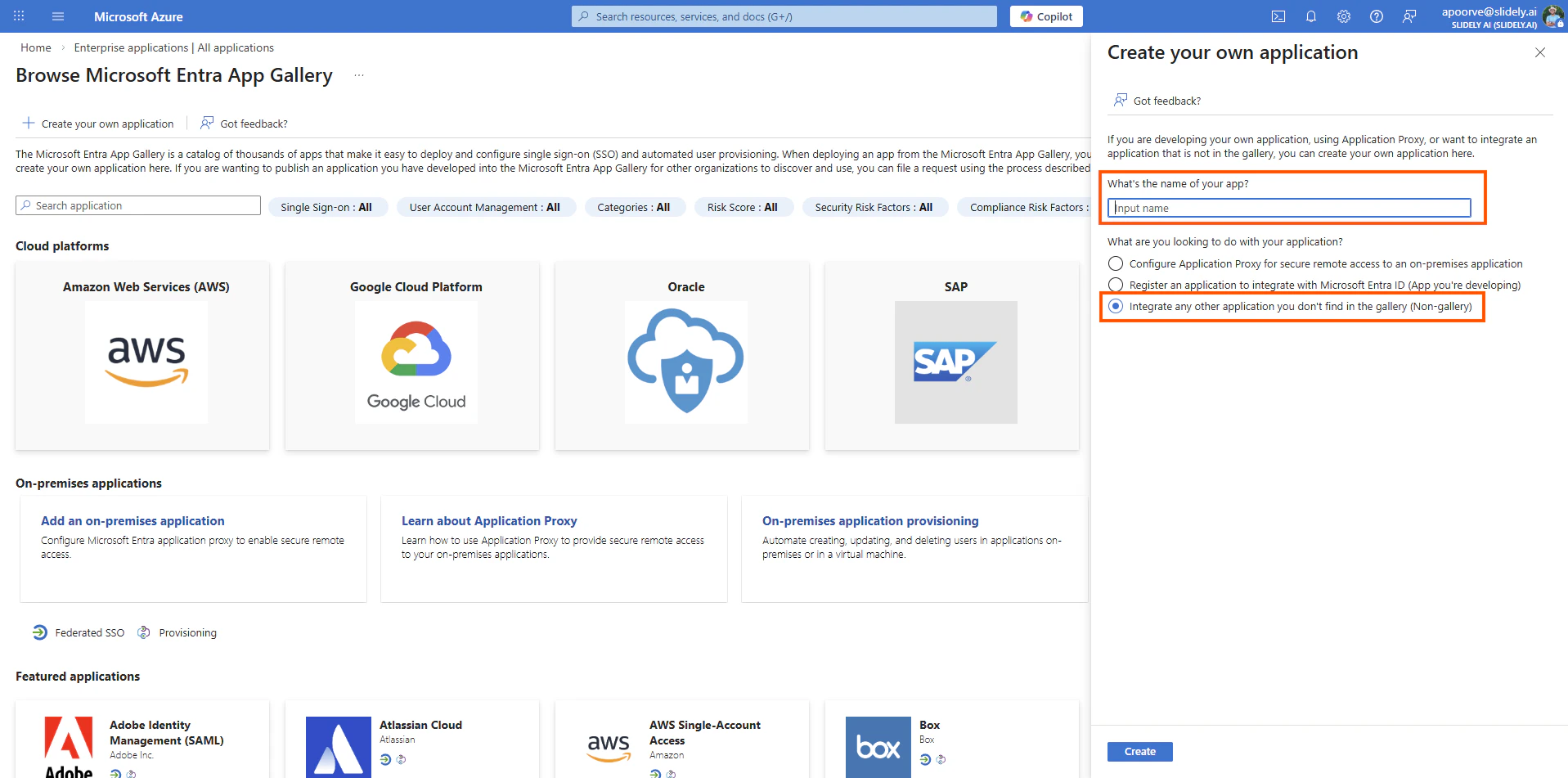
 3. Enter **Slidely AI** as the name of the app and select **Integrate any other application you don't find in the gallery (Non-gallery)**
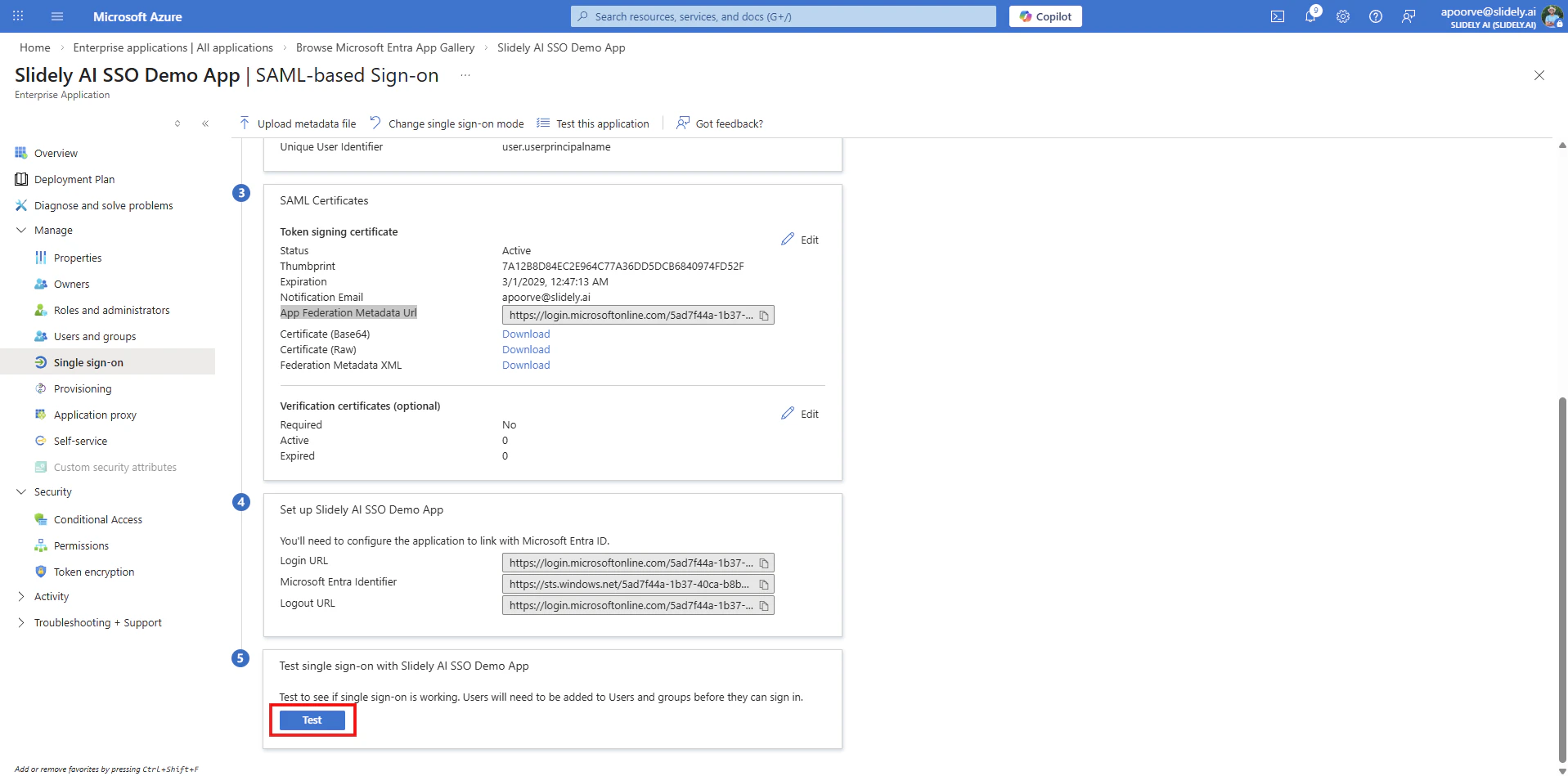
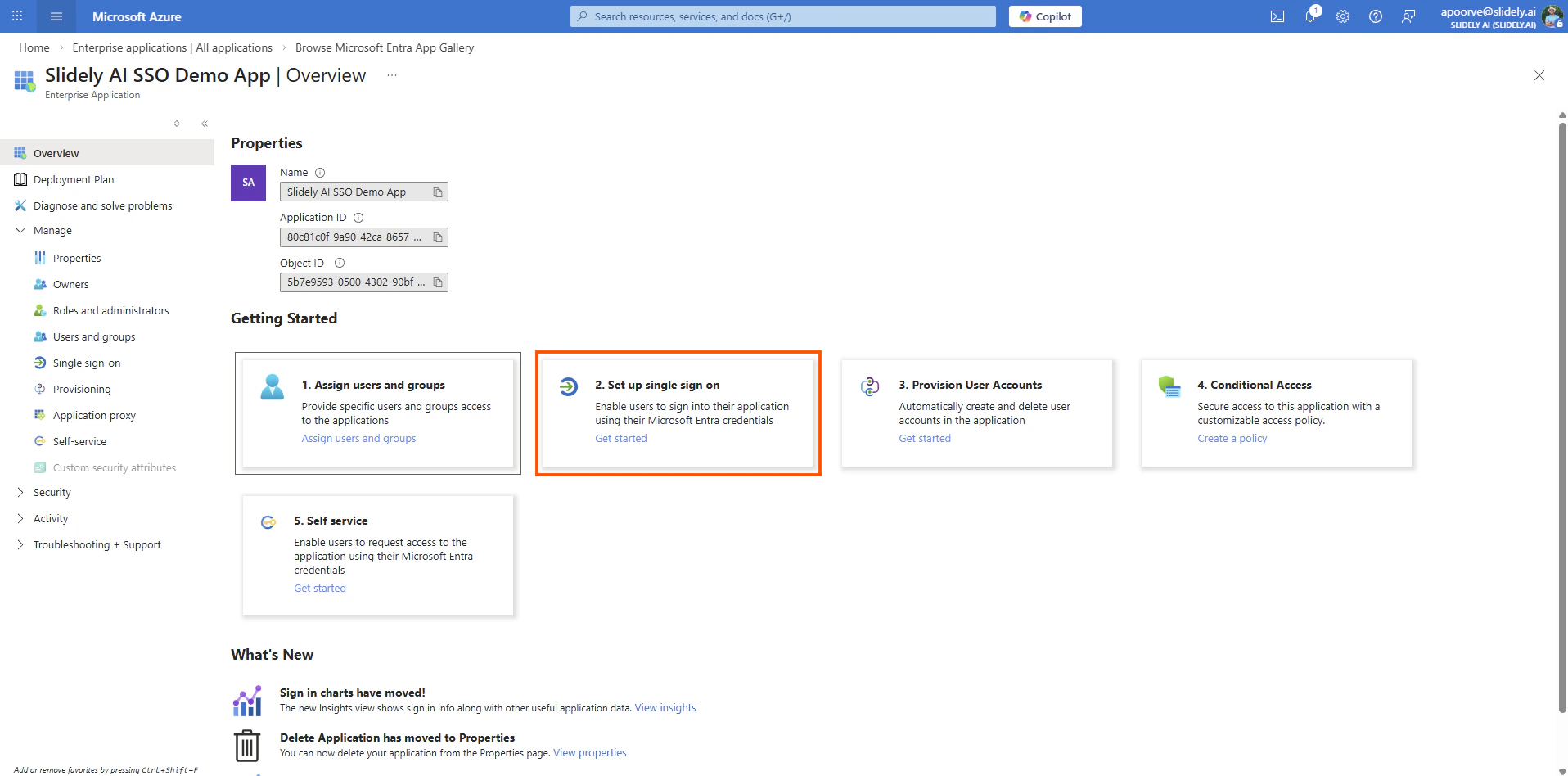
 4. Click on **Get Started** inside **2. Set up single sign on**
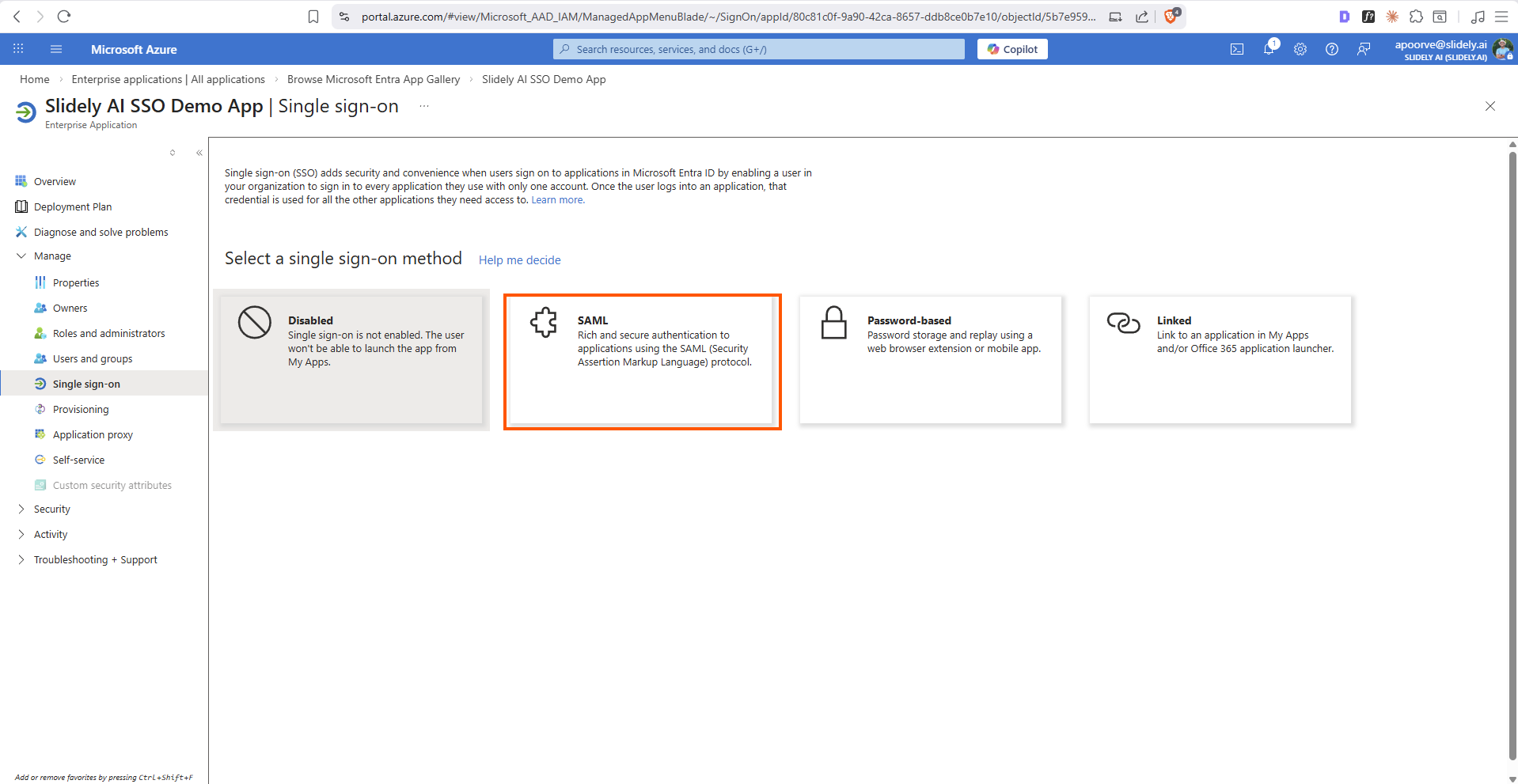
 5. Click **SAML**
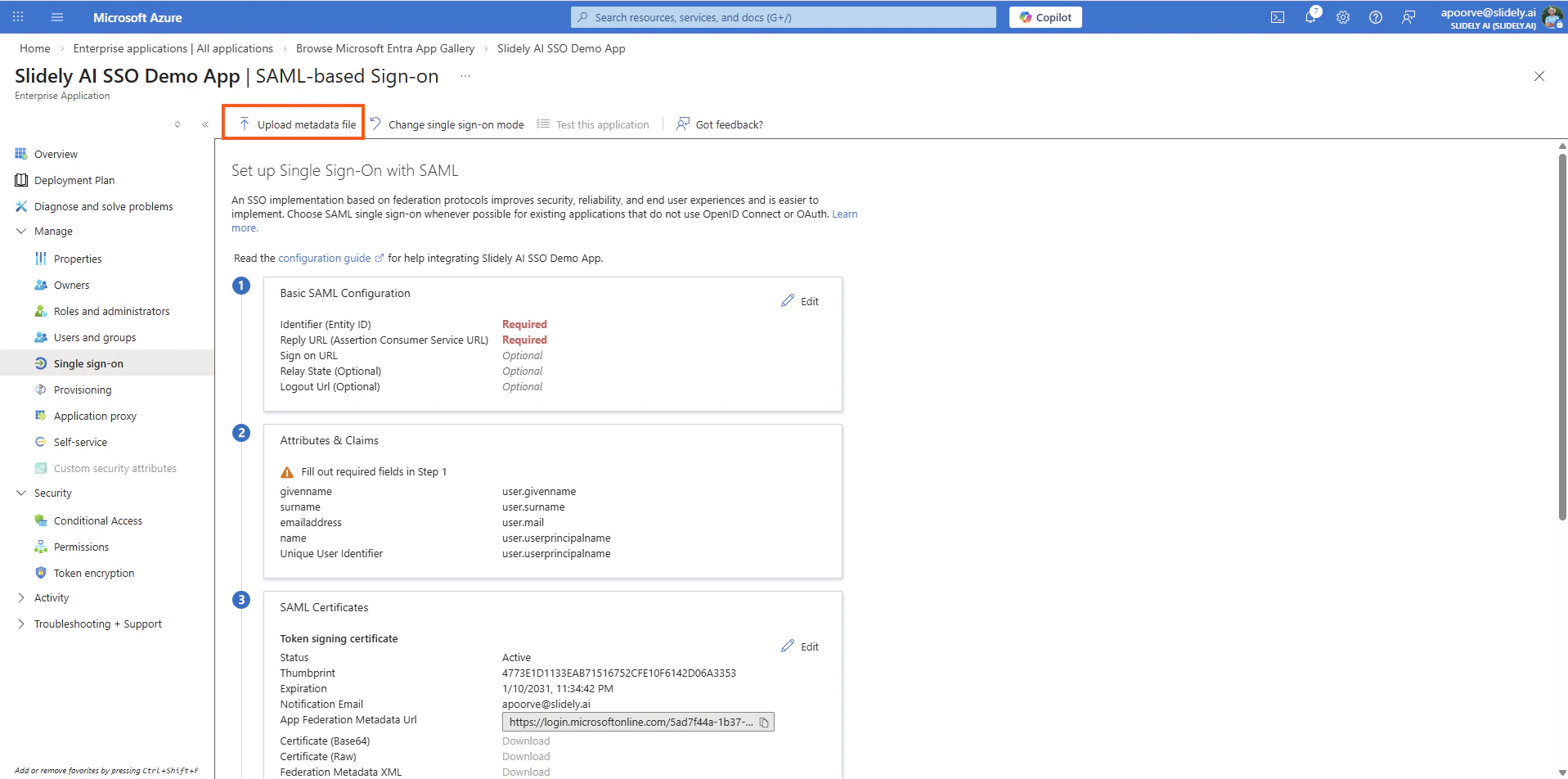
 6. Select **Upload metadata file** on the SAML page.
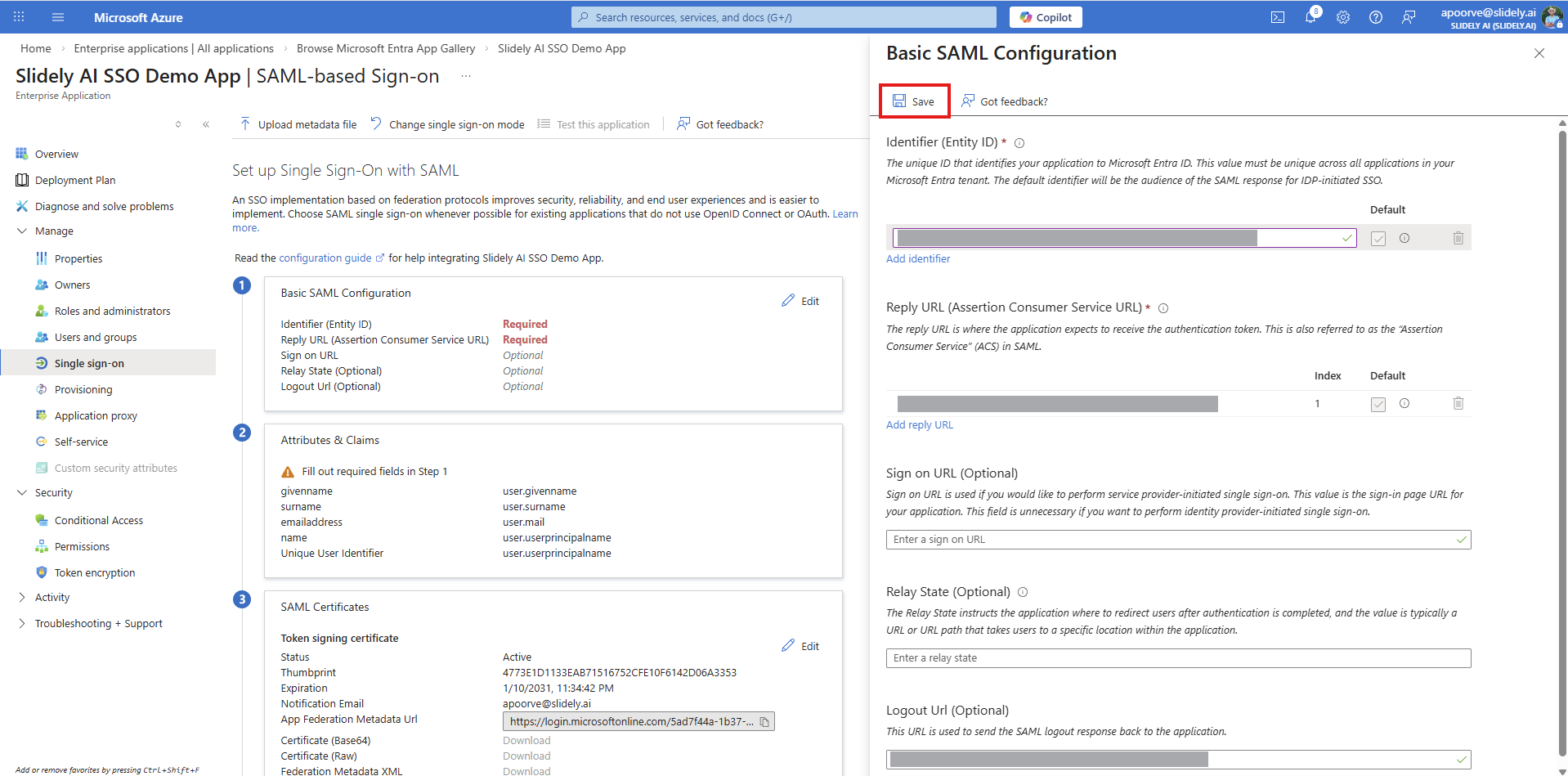
 7. Click **Save** on the SAML configuration popup.
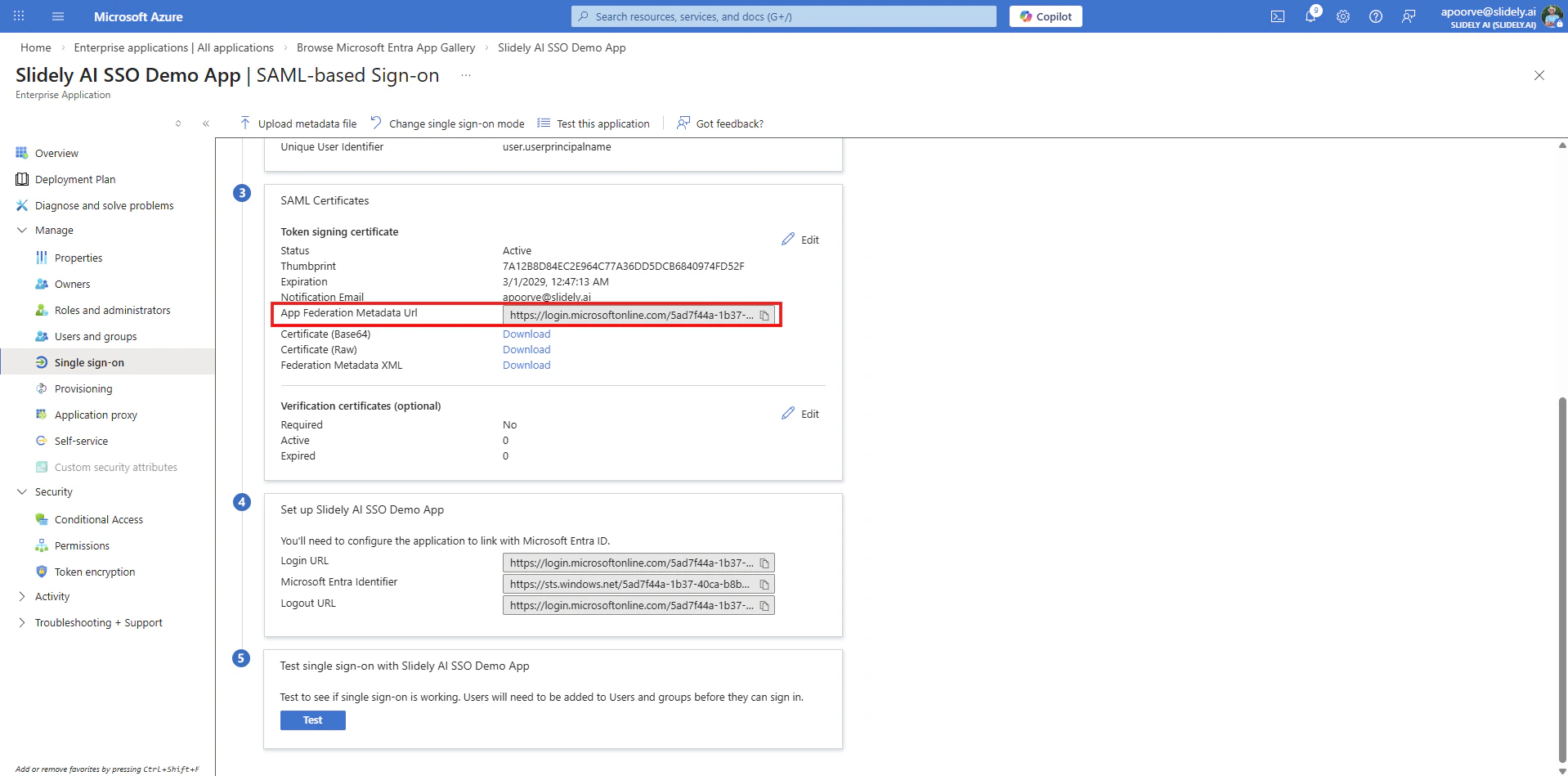
 8. Share the **App Federation Metadata Url** with the Slidely AI team.
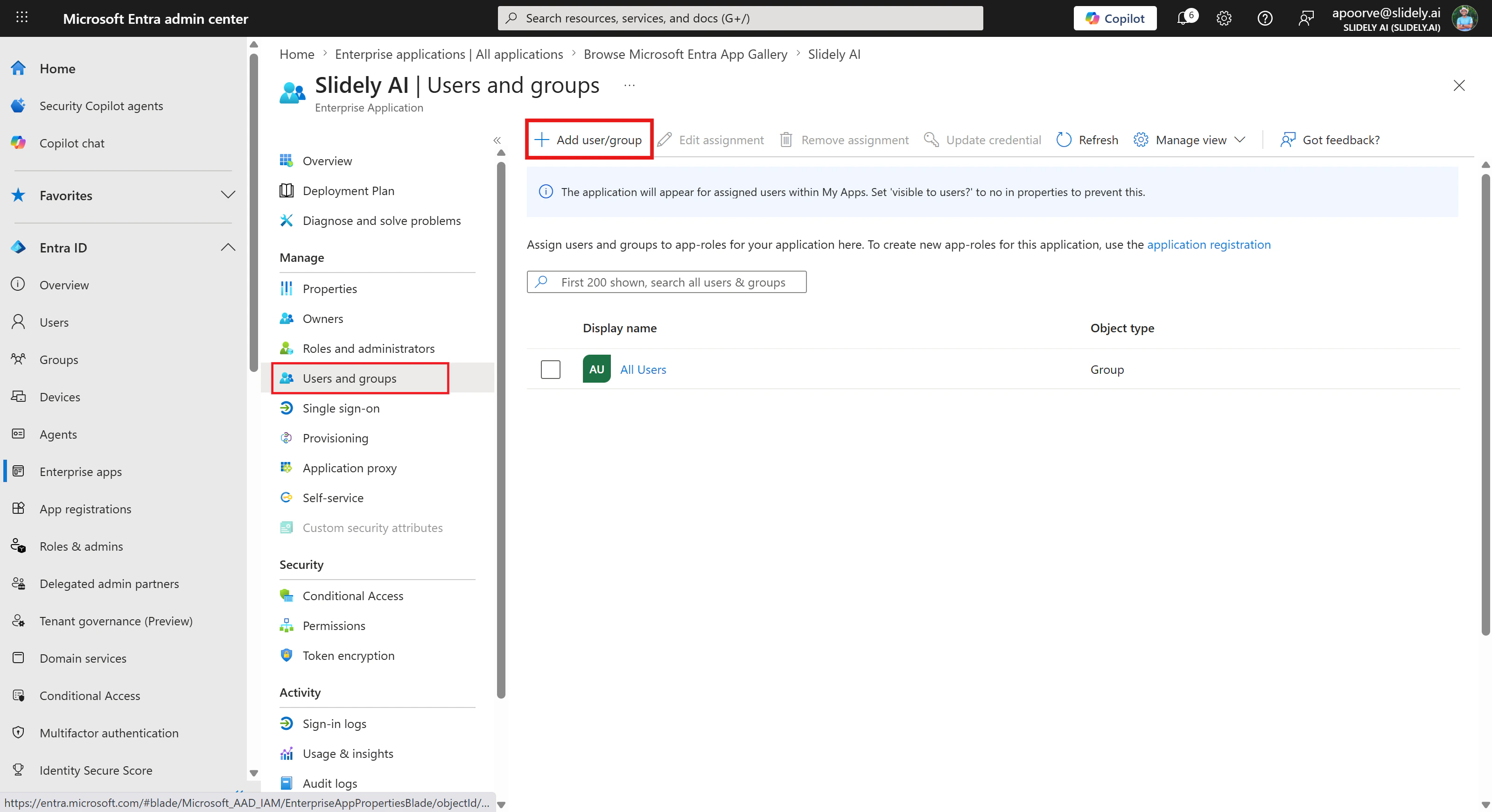
 9. Now that the SSO is configured, users and groups have to be assigned to the app to enable access. Click **Users and groups**, then click on **Add user/group.**
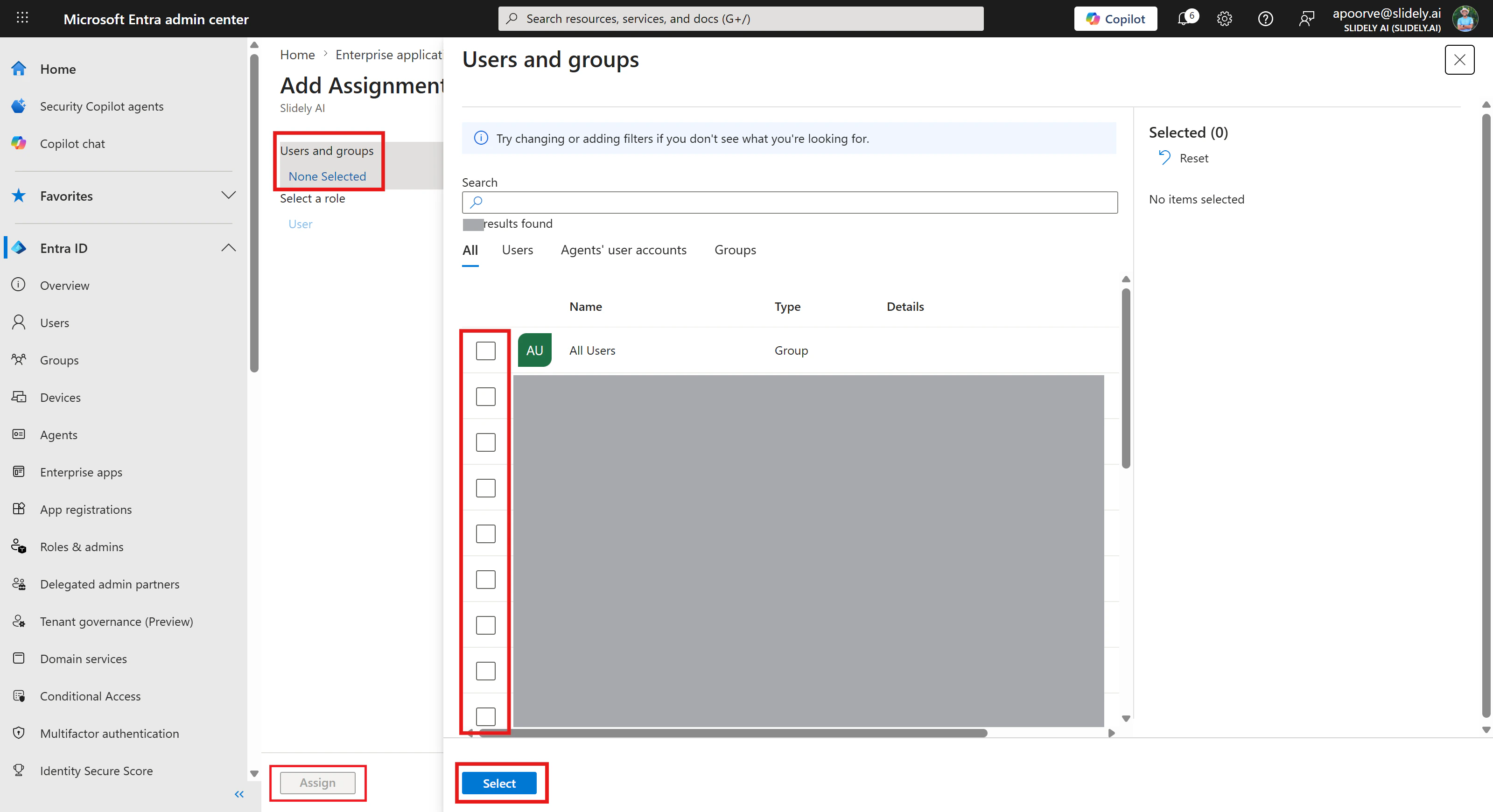
 10. Click **None Selected,** then select the required users or groups. To enable access for all users, select **All Users**, then click **Select**. The popup will close, then click **Assign** to save your settings.
 11. Once the SSO is configured from Slidely AI's end, open the page again and click **Test**.